How to connect your Halo Mesh System to Starlink
Introduction
This page covers how to connect Starlink with the Halo mesh for Starlink satellite dishes. There are two generations of Starlink Satellite Dish: The Gen-1 Terminal (Circular Dish) and the Gen-2 Terminal (Rectangular Dish). Each requires a different setup approach. The main difference between the two versions is the removal of the Ethernet Jack. Gen-2 Terminal does not include a built-in Ethernet port, so you must first purchase an Ethernet Adapter from Starlink to connect a third-party router.
Configuration
For the updated Gen-2 Starlink User Terminal
Unlike the Original Starlink Terminal, the Gen-2 Dish is Rectangular, and no PoE adapter is included. The Rectangular Dish will be directly powered by the Gen-2 Starlink router.
To connect Halo to Starlink using the Gen-2 terminal, please follow the steps below:
Step 1: Connect the main Halo to the Starlink router via an Ethernet adapter.
Note: This terminal doesn’t have an Ethernet port, so you’ll need to purchase the Ethernet adapter from Starlink.
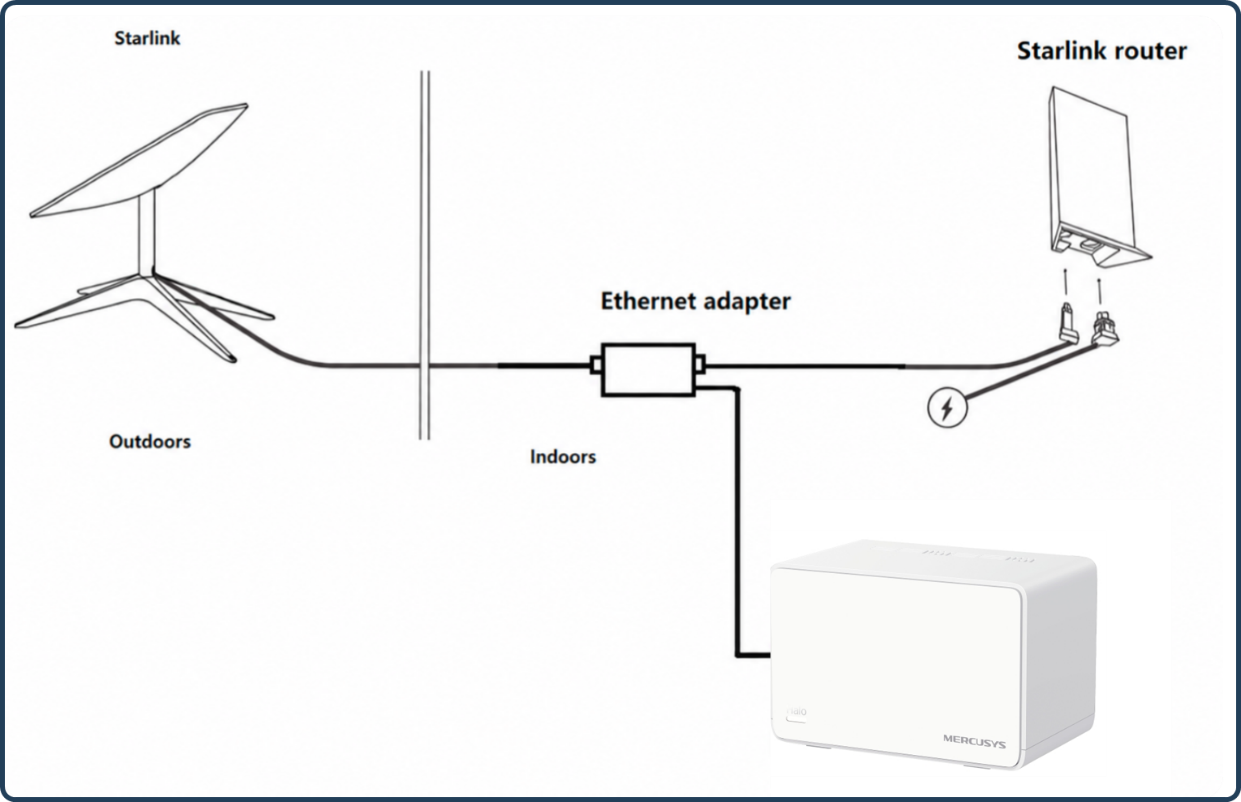
Step 2: Choose the working mode on the Starlink router and the Halo system.
Gen-2 Starlink router supports Bypass mode, which will completely disable the built-in Starlink WiFi router functionality. A factory reset is required if you want to switch back to router mode. You may choose one of the setups below based on whether you want to use the Starlink router’s Wi-Fi:
Option 1: Enable Bypass Mode (Halo in default Router Mode)
Open the Starlink APP, go to Settings > Advanced, and toggle on Bypass Starlink WiFi router.
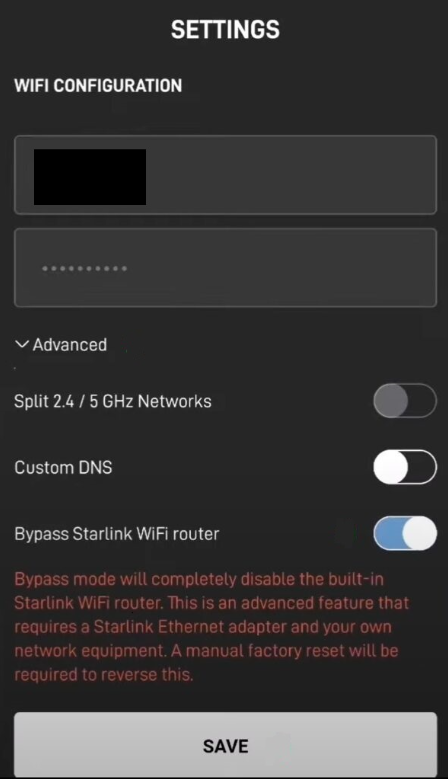
Set up Halo in wireless router mode.
Option 2: Leave Bypass Mode Disabled (Halo in Access Point Mode)
In this setup, no changes are required on the Starlink router. You only need to set up the Halo network and change its Operation Mode to Access Point.
For the original Gen-1 Starlink User Terminal
Option 1: Connect Halo Directly to the Starlink Terminal (Without Starlink Router)
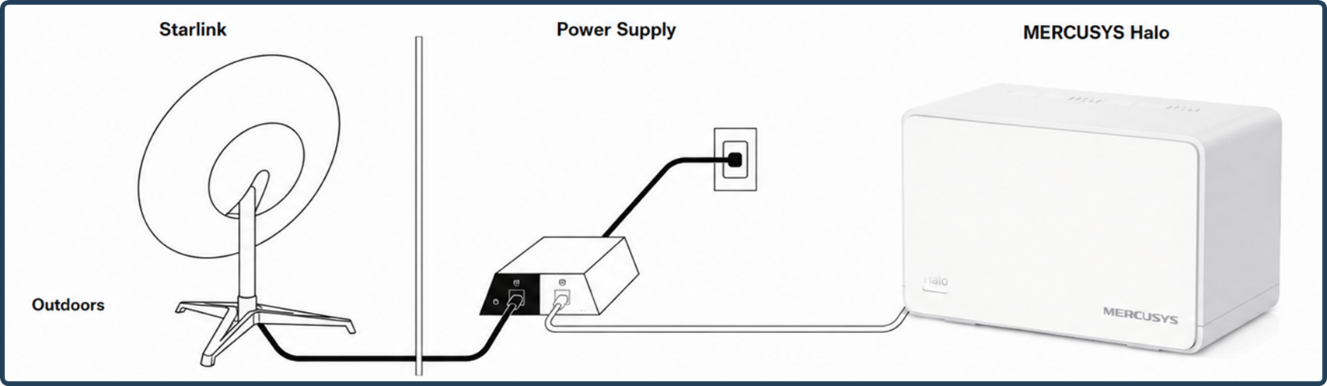
Follow How to create a new Halo network through the MERCUSYS App to set up Halo on MERCUSYS App.
Option 2: Connect Halo via the Gen-1 Starlink Router
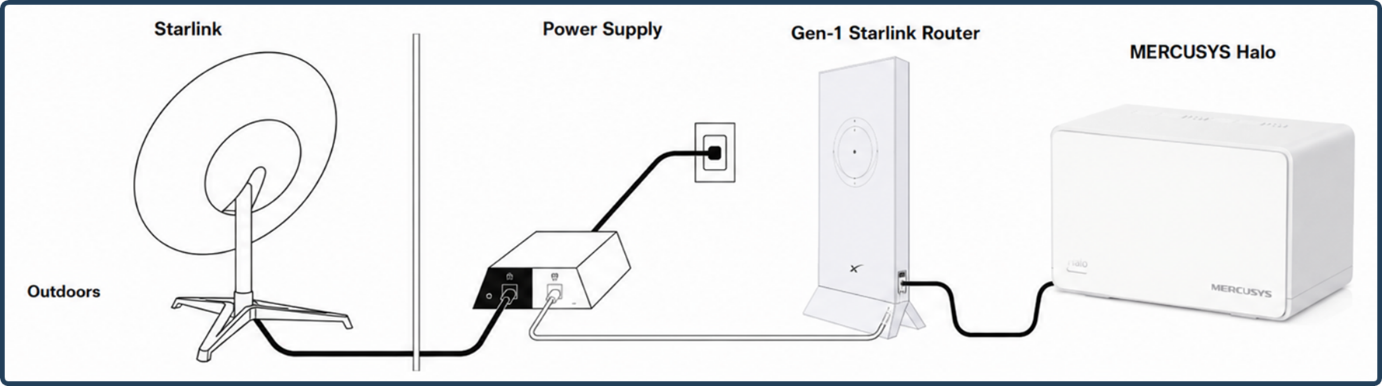
On this network topology, please connect Halo to the AUX port of the Gen-1 Starlink Router. Since the default operation mode on Halo is also a wireless router, to avoid the double-NAT issue, it is recommended to set Halo to Access Point mode.
For any further inquiries about Halo setup or configuration with Starlink, please contact our technical support.