How to connect your MERCUSYS Router to Starlink
Introduction
This guide covers how to connect a router to Starlink for both generations of Starlink terminals.
Before following the steps, identify which dish you have: the Gen-1 (Circular Dish) or the Gen-2 (Rectangular Dish). The setup method differs between the two. The Gen-2 terminal removed the built-in Ethernet jack, so you must purchase a separate Starlink Ethernet Adapter before a wired connection to a MERCUSYS router is possible.
Configuration
For the updated Gen-2 Starlink User Terminal
Unlike the Original Starlink Terminal, the Gen-2 Dish is Rectangular, and no PoE adapter is included. The Rectangular Dish will be directly powered by the Gen-2 Starlink router. Since there is no more Ethernet jack on the Gen-2 Starlink router, you must purchase an Ethernet Adapter from Starlink to connect the MERCUSYS router.
Connect the MERCUSYS router together with the Gen-2 Starlink router
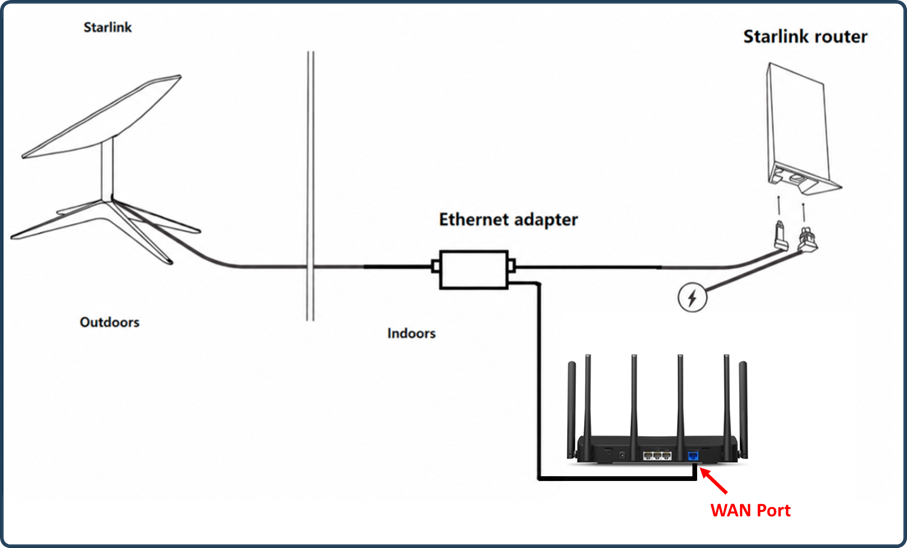
Gen-2 Starlink router supports Bypass mode that will completely disable the built-in Starlink WiFi router functionality. A factory reset is required if you want to switch back to router mode. So when the MERCUSYS router is connected to the Ethernet adapter, there are two recommended setups.
Option 1: Enable Bypass Mode — MERCUSYS Router in Wireless Router Mode
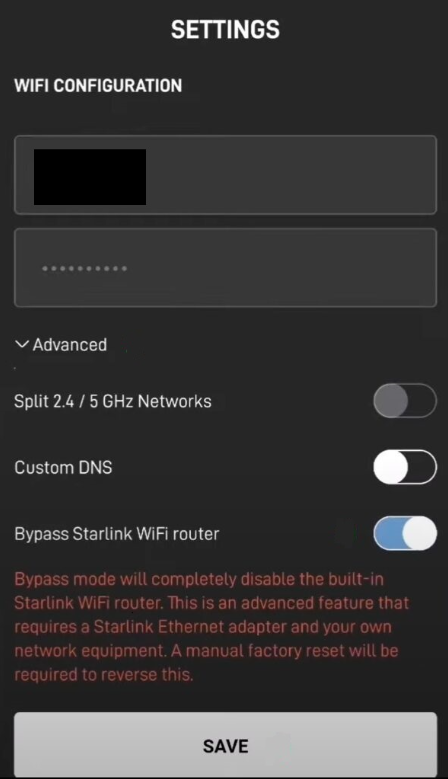
Option 2: Keep Bypass Mode Disabled — MERCUSYS Router in Access Point Mode
For the original Gen-1 Starlink User Terminal
Option 1: Connect the MERCUSYS Router Without the Gen-1 Starlink Router
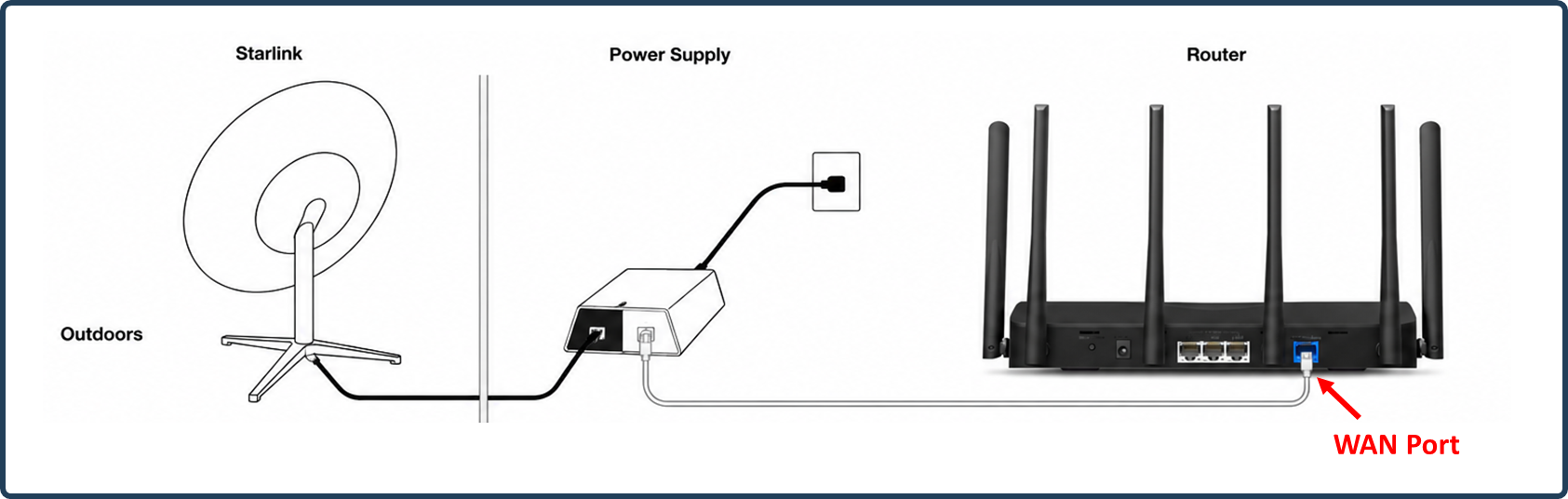
In this setup, the MERCUSYS router connects directly to the Starlink dish's power supply output and should be configured in Wireless Router mode. Go through how to set up a MERCUSYS router on the web management page.
Option 2: Connect the MERCUSYS Router Together With the Gen-1 Starlink Router
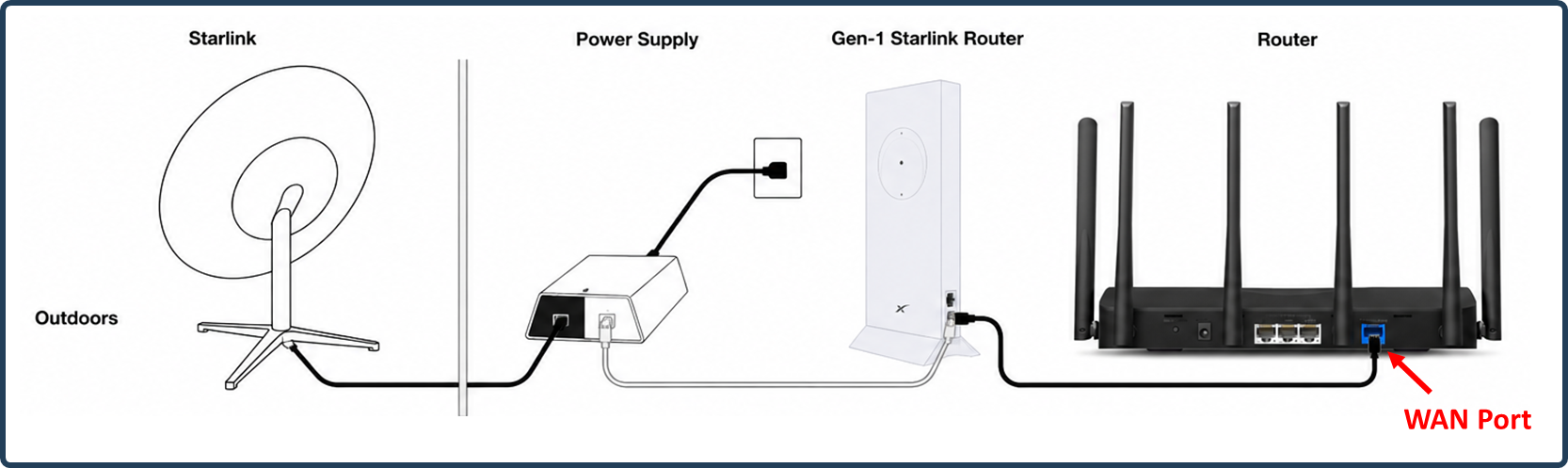
On this network topology, please connect the MERCUSYS router to the AUX port of the Gen-1 Starlink Router. To avoid double NAT, it is suggested to change the MERCUSYS router to Access Point mode.
Follow How to configure the MERCUSYS Wireless Router as a wireless Access Point.
For any further inquiries about the MERCUSYS router setup or configuration with Starlink, please contact our technical support.