How to add another chime for the MERCUSYS Doorbell
In addition to the MERCUSYS doorbell's built-in ringer, you may add extra chimes to notify you of visitors' arrival. This article will introduce you to how to add chime for the MERCUSYS Doorbell.
Note: Before you start, ensure your MERCUSYS devices are set up successfully and have internet access.
Option 1: Add MERCUSYS Chime
1. Go to the MERCUSYS app and tap your device card to enter the doorbell page on the Home page.
2. On the Doorbell page, tap the gear icon in the upper right corner to access the Device Settings page.
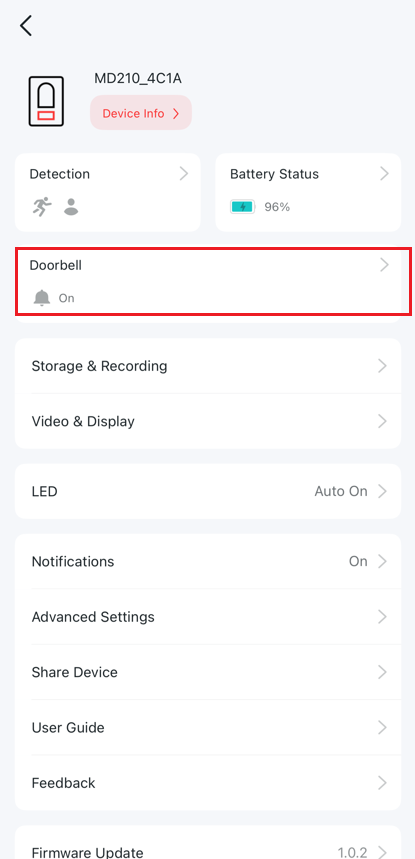
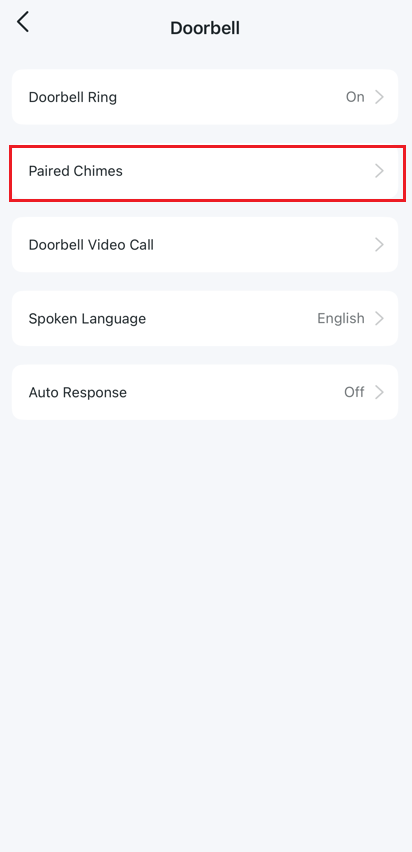
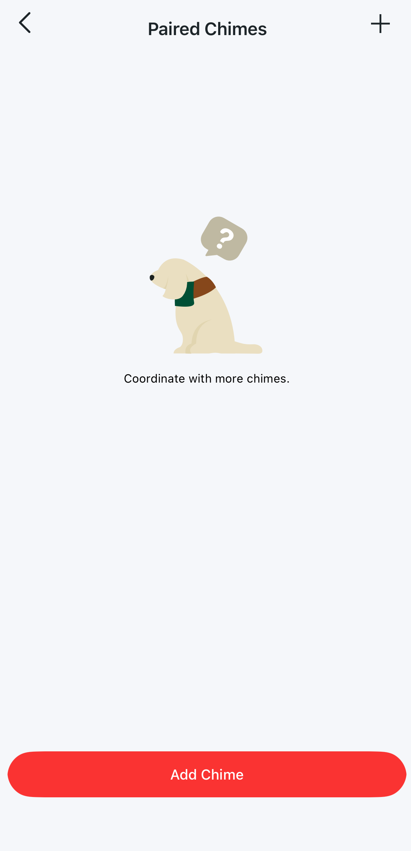
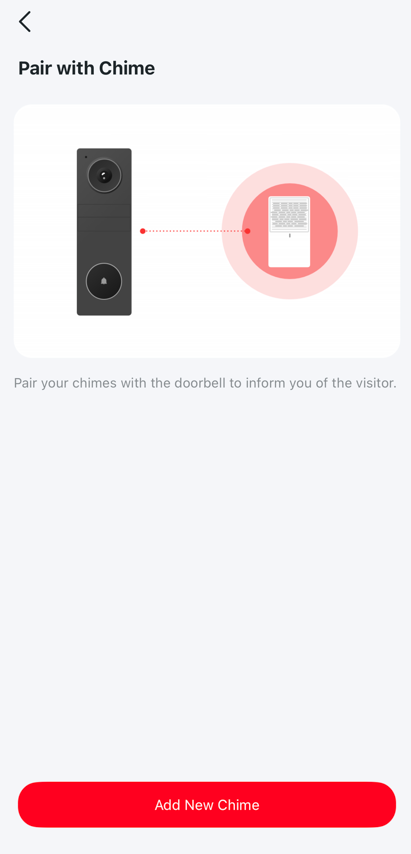
3. On the Device Settings page, tap Doorbell > Paired Chimes > Add Chime, choose Add new Chime, and follow the app instructions to pair the product.
-MERCUSYS Chime: Unlike traditional chimes, it connects to your router via Wi-Fi and supports local or remote pairing with the MERCUSYS Doorbell. This allows you to install the MERCUSYS Chime anywhere with Wi-Fi and Internet access.
Option 2: Add Alexa Echo or Google Assistant Speaker/Display as a chime
Note: Currently, only the Alexa Echo Speaker/Display or Google Assistant Speaker/Display can be paired with the MERCUSYS doorbell, and you need to set it up on the corresponding three-party platform.
We take Alexa Echo Speaker/Display as an example.
1. Link MERCUSYS service with Alexa. Click the link below to learn how.
How to make my MERCUSYS camera work with Amazon Alexa
2. Find the MERCUSYS doorbell in Alexa App.
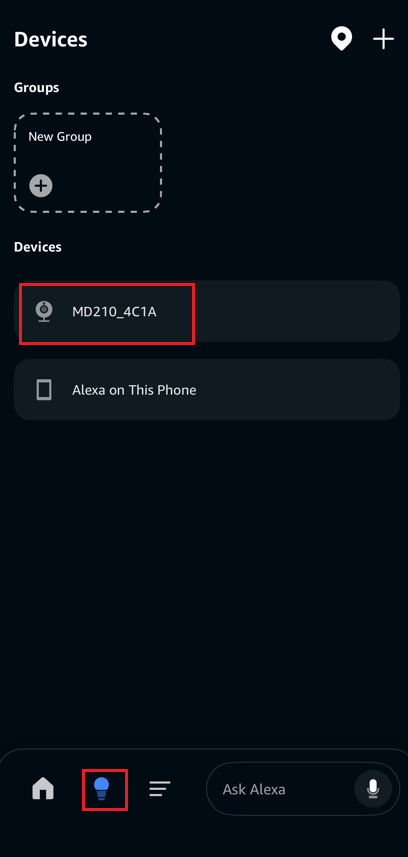
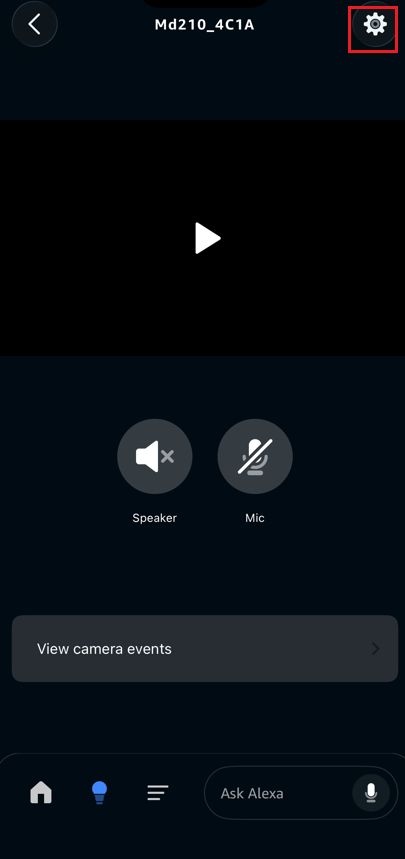
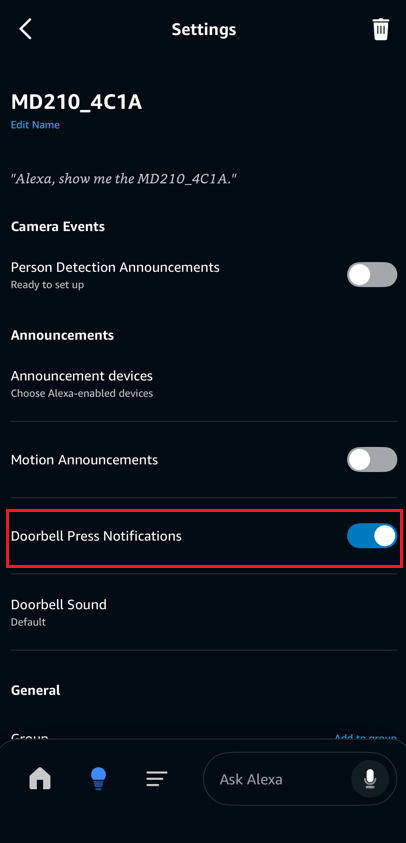
3. Turn on Doorbell Press Notifications.
Get to know more details of each function and configuration please go to Support Center to download the manual of your product.