How to add a Satellite Halo to your Halo network
Introduction
After creating a Halo network, you can add additional Halo units to extend the Wi-Fi coverage and easily manage all Halo units on MERCUSYS App.
Requirements
The main Halo unit has already been successfully set up on MERCUSYS App.
You are logged in to the MERCUSYS App with the MERCUSYS ID that owns the Halo network.
Note: Manager accounts don't have permission to add new Halo units.
Configuration
Note:
For Halo Wi-Fi 6 and Wi-Fi 7 models:
Satellite Halo will join the Halo network automatically within two minutes after you power them on if the Main Halo and the Satellite Halo are from the same package.
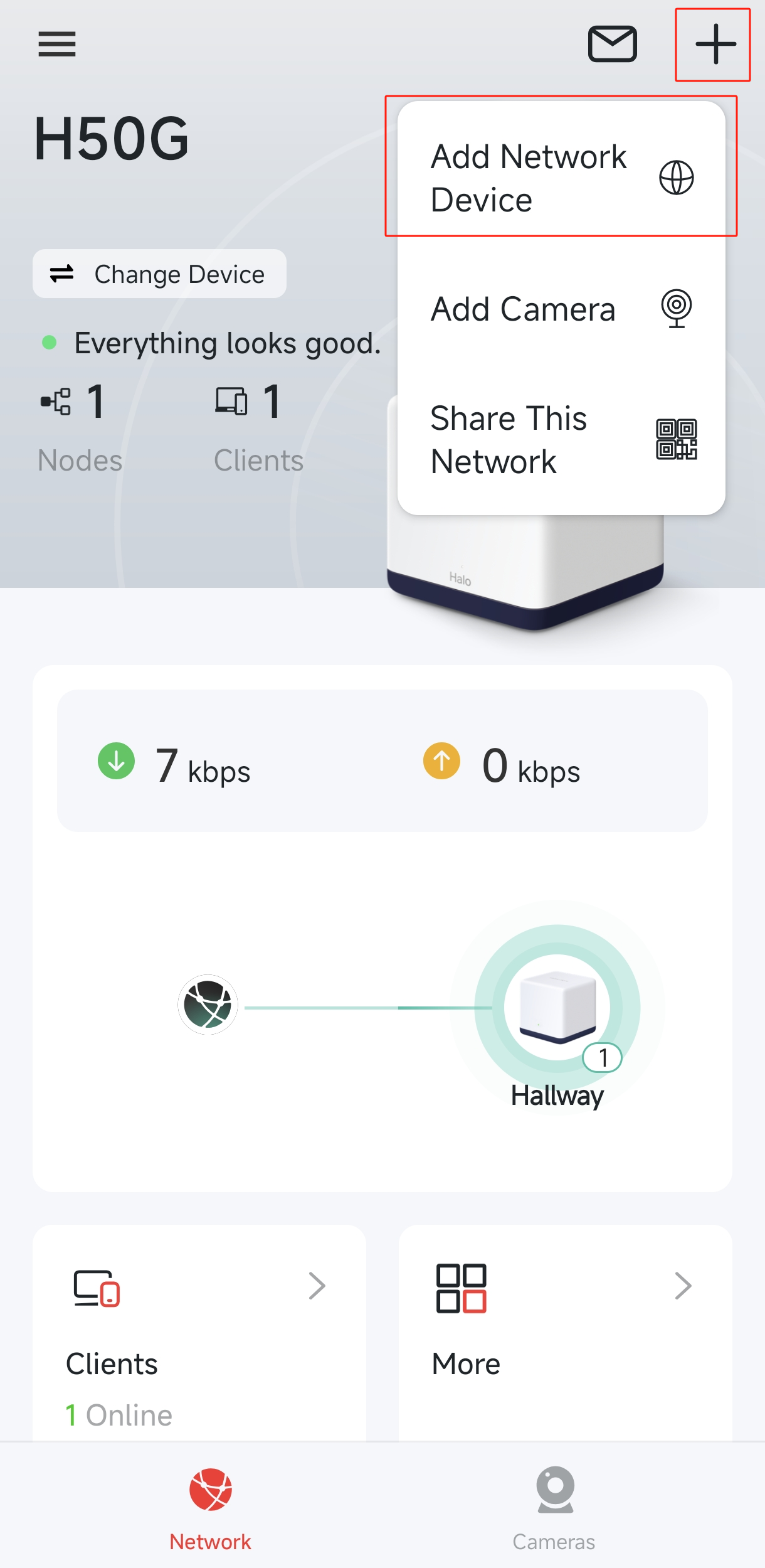
Step 1. Open the MERCUSYS App. Go to the "Network" tab, tap the "+" icon in the top-right corner, and select "Add Network Device".
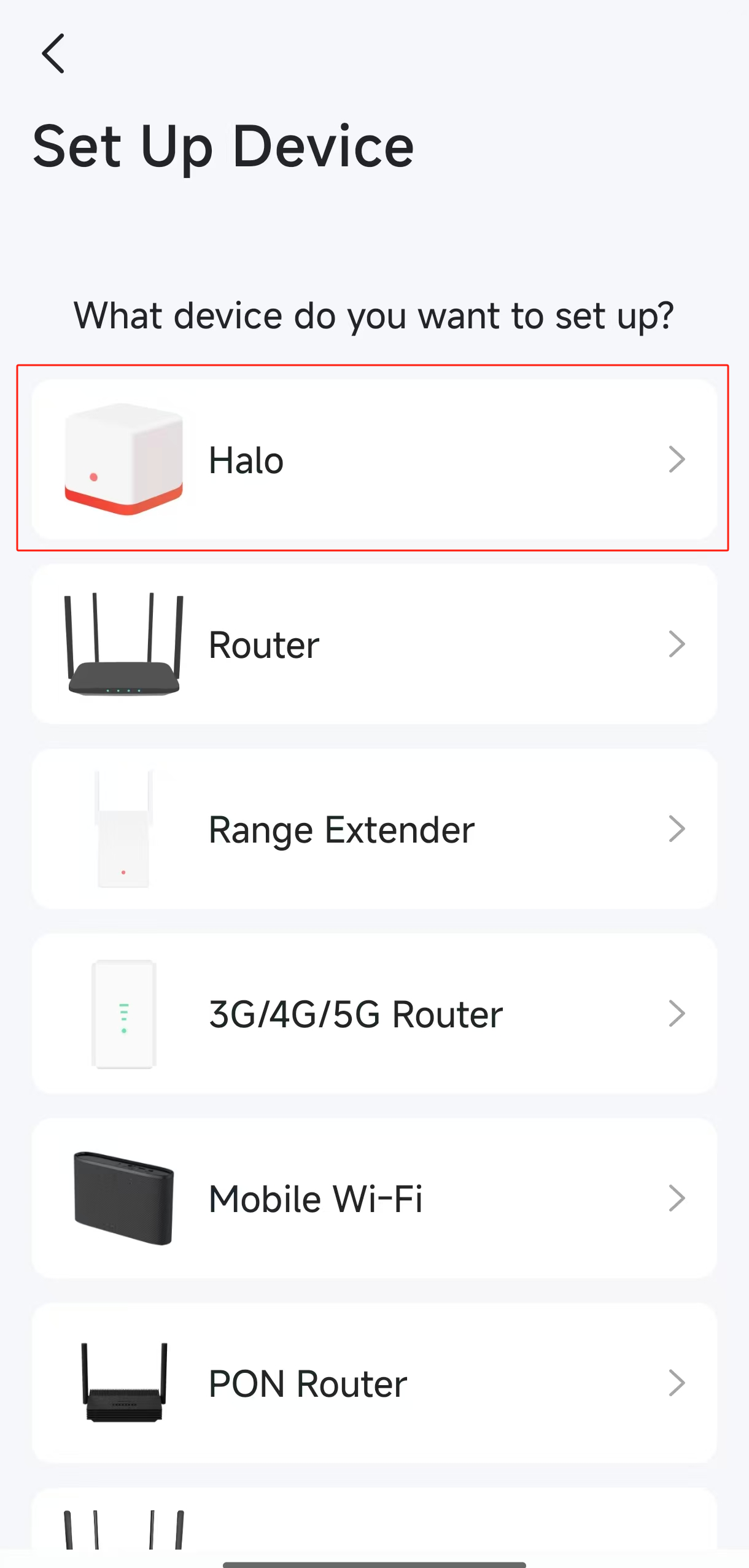
Step 2. Select "Halo" on "Set Up Device" page.
Step 3. Select Add it to the current “Halo Mesh” network.

Step 4. Follow the App instructions to add the Satellite Halo.

Get to know more details of each function and configuration please go to Support Center to download the manual of your product.