What can I do if my Pan & Tilt Camera rotates automatically?
Introduction
If you're experiencing unintended auto-rotation of your Pan & Tilt camera, this can be a concerning issue.
In this troubleshooting guide, we'll explore the potential reasons behind the camera's unintended auto-rotation behavior and provide some workarounds to help you resolve these problems.
Note: Before starting troubleshooting, please ensure that the camera is using the original power adapter and cable that came with the package, rather than a power extension cord or a different adapter.
Troubleshooting
1. Patrol mode is enabled.
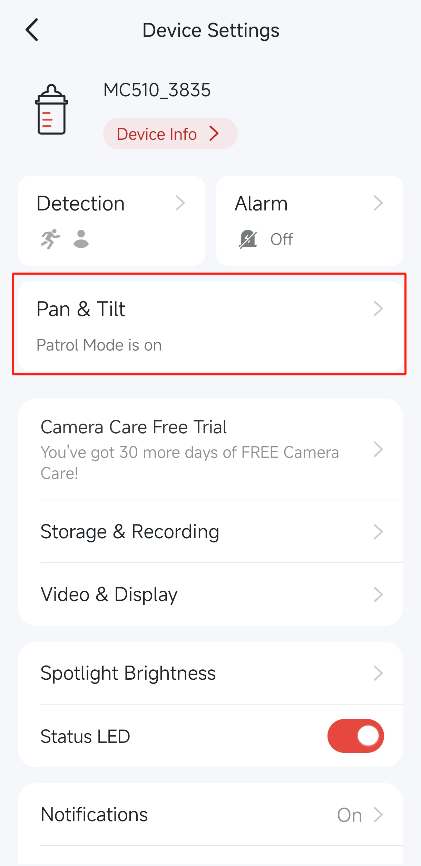
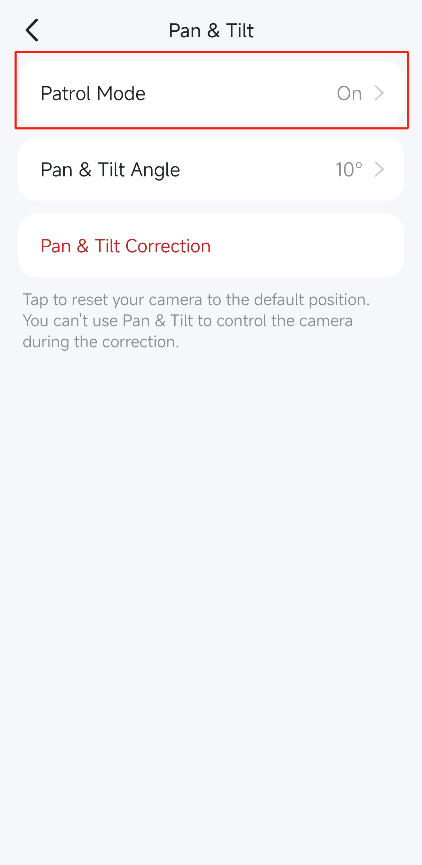
When the Patrol Mode is enabled on the camera, it moves its lens and orientation according to a programmed patrol pattern. This can include repeatedly scanning back and forth, rotating between viewpoints, or following a more complex multi-point patrol route.
You can go to the MERCUSYS App > Device Settings > Pan & Tilt > Patrol Mode page to check if this feature is enabled.
2. Motion tracking (Auto tracking) is enabled.
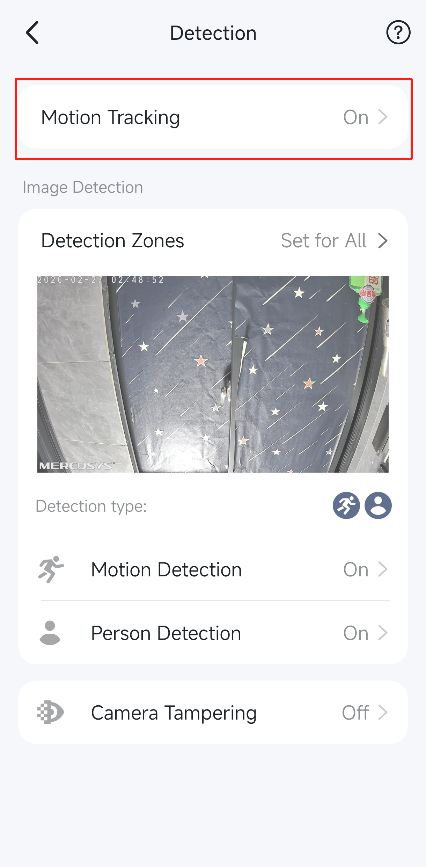
When the camera's Motion Tracking (Auto tracking) mode is enabled, the camera's intelligent algorithms will continuously analyze the video feed to identify and lock onto moving objects or people. Once a target is detected, the camera will automatically adjust its pan and tilt settings to keep the subject centered and in focus within the frame.
You can go to the MERCUSYS App > Camera's Device Settings > Detection > Motion Tracking (Auto Tracking) page to check if the Tracking function is enabled. It is normal for the camera to rotate automatically when motion is detected.
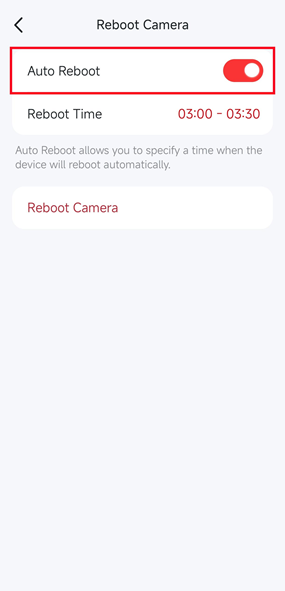
3. Auto Reboot feature is enabled.
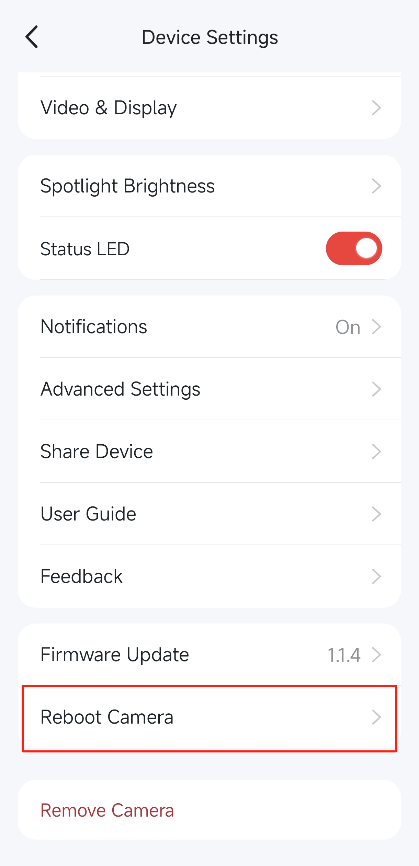
MERCUSYS Camera can be set up with an automatic reboot Schedule within the App. After a reboot, the camera performs a self-test and calibration of the pan-tilt mechanism, during which the camera's pan axis automatically rotates itself.
You can go to the MERCUSYS App > Camera's Device Settings > Reboot Camera page to check if the Auto Reboot function is enabled, it is normal for the camera to rotate automatically after a reboot.
4. Firmware Auto-Update feature is turned on.
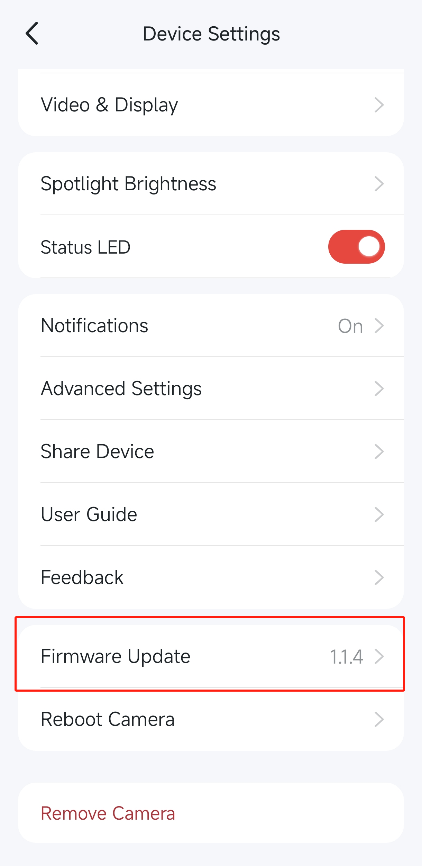
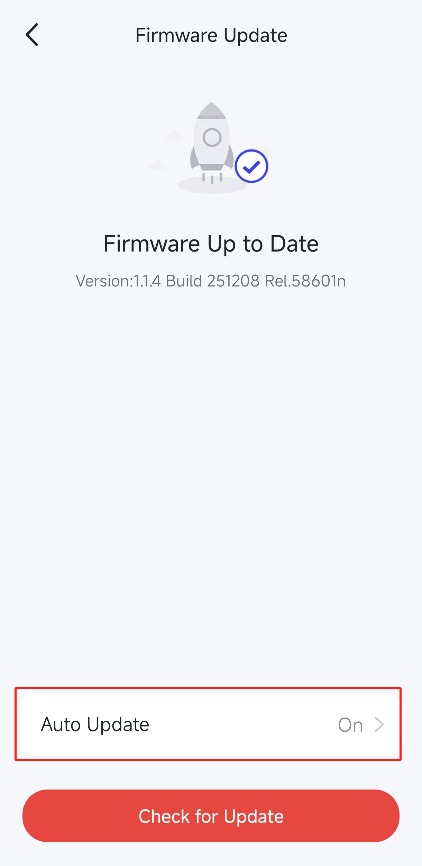
The camera will automatically reboot after the firmware upgrade is complete, regardless of whether the camera is manually upgrading the firmware or has been set to upgrade the firmware automatically. During this reboot the camera's pan-tilt mechanism will show a rotational behavior for self-testing and calibration.
You can go to the MERCUSYS App > Camera's Device Settings > Firmware Update page to check if the Auto Update function is enabled, it is normal for the camera to rotate automatically after a firmware update.
5. Camera's Share is controlling the Pan & Tilt camera
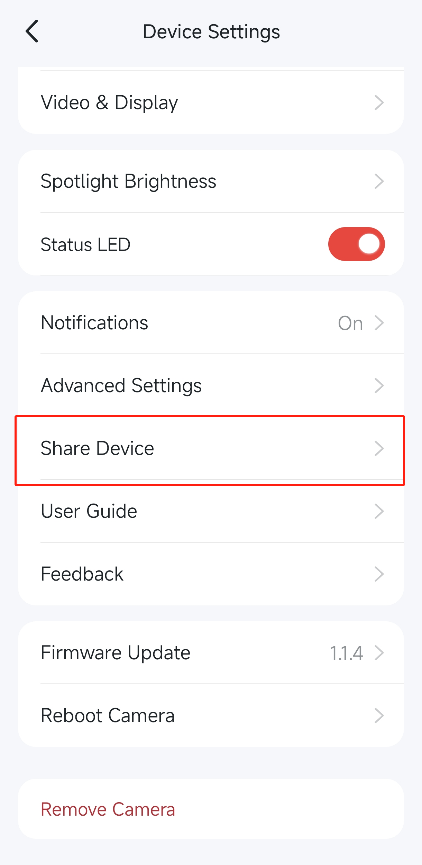
If you ever share the camera with your family or friend's account within the App, the person who was shared has permission to control the pan-tilt. Please check if you have shared the camera with others on the MERCUSYS App > Camera's Device Settings > Share Device page.
6. Someone is controlling the panning and tilting movement of the camera.
We have implemented measures, including encryption and TLS technology, to protect your data. However, if you use the same account credentials across multiple platforms or Applications, and those credentials have been compromised elsewhere, a bad actor could still gain unauthorized access to your camera. Furthermore, you can use a service like Mozilla Monitor (https://monitor.mozilla.org/) to check if your email address or passwords have been involved in any data breaches. This can help you stay informed and take proactive steps to secure your accounts, especially if you discover that your credentials have been exposed.
Here are some best practices to protect your MERCUSYS ID account:
Use complex passwords (a mixture of upper and lower letters, numbers, and symbols) when signing up.
Use a unique password different from other website accounts to avoid being involved in their accidental data breaches.
Change your passwords regularly.