How to Set Up the Range Extender via the MERCUSYS App
This guide walks you through configuring your MERCUSYS range extender using the MERCUSYS app. The app guides you through the setup process step by step, making it easy to extend your Wi-Fi coverage in minutes.
Download and Install the MERCUSYS App
Scan the QR code below or go to Google Play or the App Store to download the MERCUSYS App. Install the app on your Android or iOS smartphone or tablet.

Log in to the MERCUSYS App
Open the app and log in with your MERCUSYS ID. If you don't have a MERCUSYS ID, create one first.
Prepare Your Range Extender
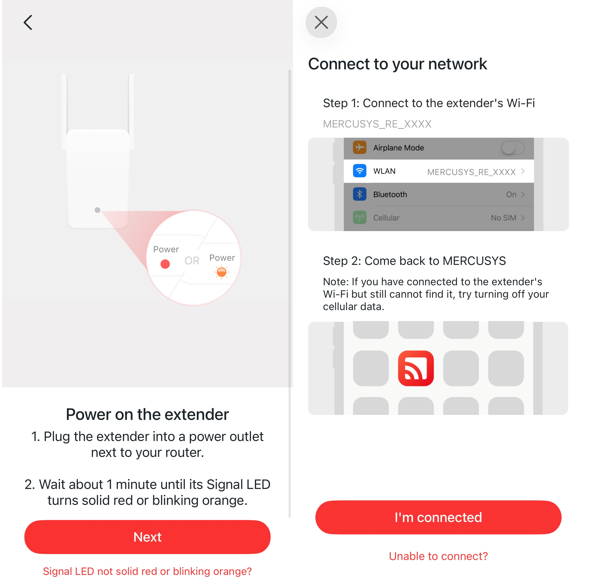
Plug your range extender into a wall socket near your router. Wait until the Signal LED turns solid on or blinking orange.
If it doesn't, press and hold the reset button for 5 to 10 seconds until the LED blinks.
Add A Range Extender to the app
In the MERCUSYS app, tap the + button in the top-right corner, select Add Network Device, then choose the Range Extender.
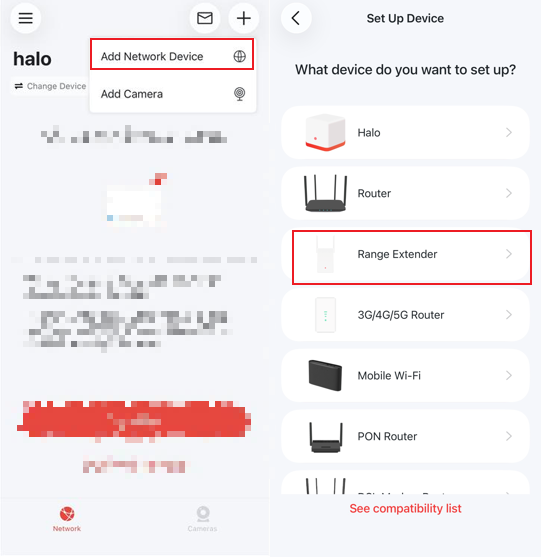
Connect to the Extender's Network
Double-check that the range extender is ready for setup.
Go to your phone's Wi-Fi settings, connect to the MERCUSYS default network (MERCUSYS_RE_XXXX), and return to the app to continue.
Create A Local Password
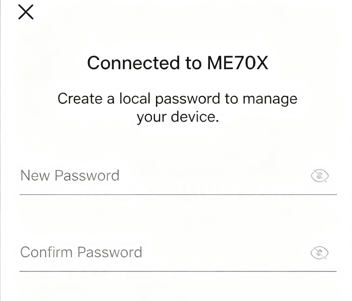
Once connected, the app will ask you to create a local password for managing the extender. Enter and confirm a password.
Connect the Extender to Your Home Wi-Fi
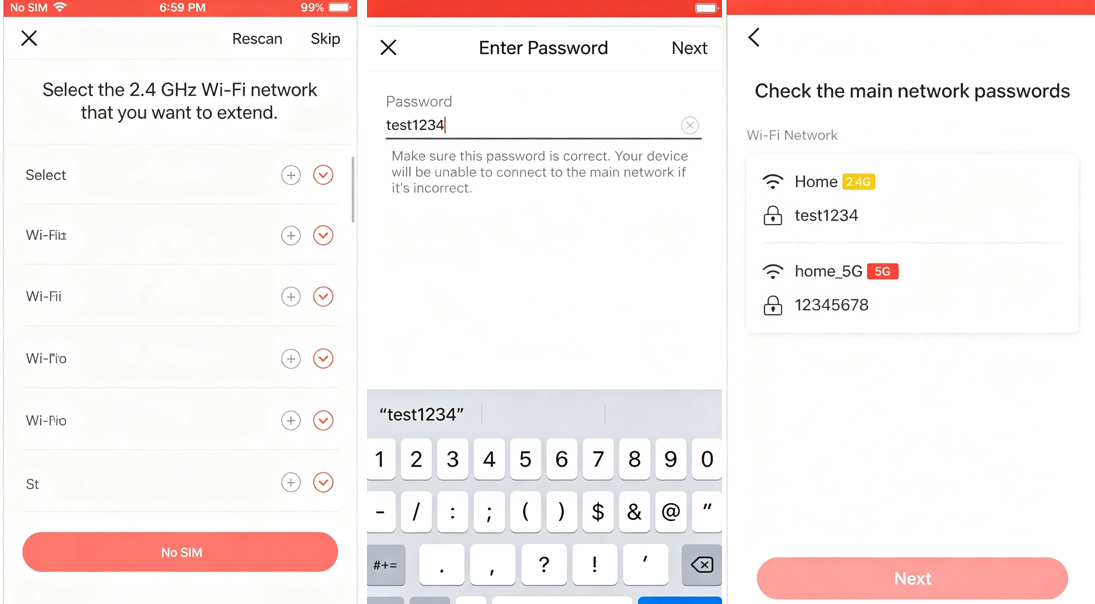
The app will scan for available wireless networks nearby (first 2.4GHz, then 5GHz). Select your router's 2.4GHz Wi-Fi network from the list, and enter its password.
Repeat the same process for 5 GHz, and the app will test its connection.
Customize the Extender's Network
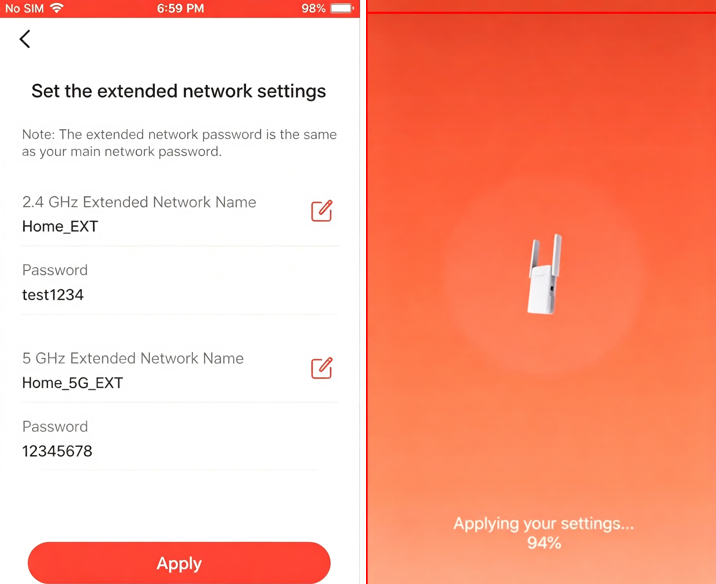
To change the extender's Wi-Fi name, click the Edit button. Once finished, click Apply. The extender will apply the settings, which takes 1-2 minutes.
When the extender successfully connects to the router, its Signal LED will turn solid green.
Relocate the Extender
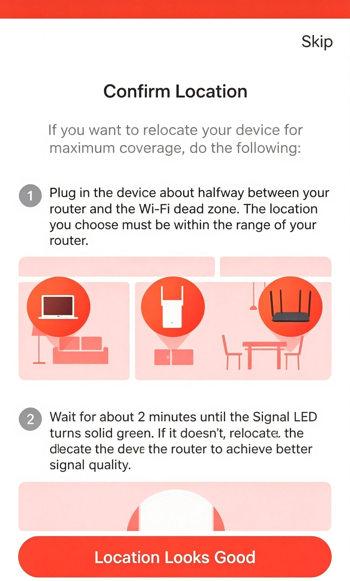
Unplug the extender, and place it halfway between your router and the area where you need better Wi-Fi coverage.
Wait until the Signal LED turns solid on again, and enjoy your range extender!
To know more details of each function and configuration, please go to the Support Center to download the manual for your product.