How to Set Up MERCUSYS 5G/4G Router via Web Management page
MERCUSYS 5G/4G Router supports multiple operation modes, including Wireless Router Mode and 5G/4G Router Mode. This article guides you through the configuration process via the web management page.
Scenario 1: For 5G Router
Here we take MB521-5G as an example. The actual interface may vary slightly from the product model.
Part 1: Set up in 3G/4G/5G Router Mode
Step 1. Power on the router and install a compatible SIM card by gently sliding the SIM card into the slot until you hear a click sound.
Step 2. Connect a computer/smartphone to the router's network via Ethernet cable or Wi-Fi, then visit mwlogin.net or 192.168.1.1 to log in to the web management page of the MERCUSYS 5G/4G router.
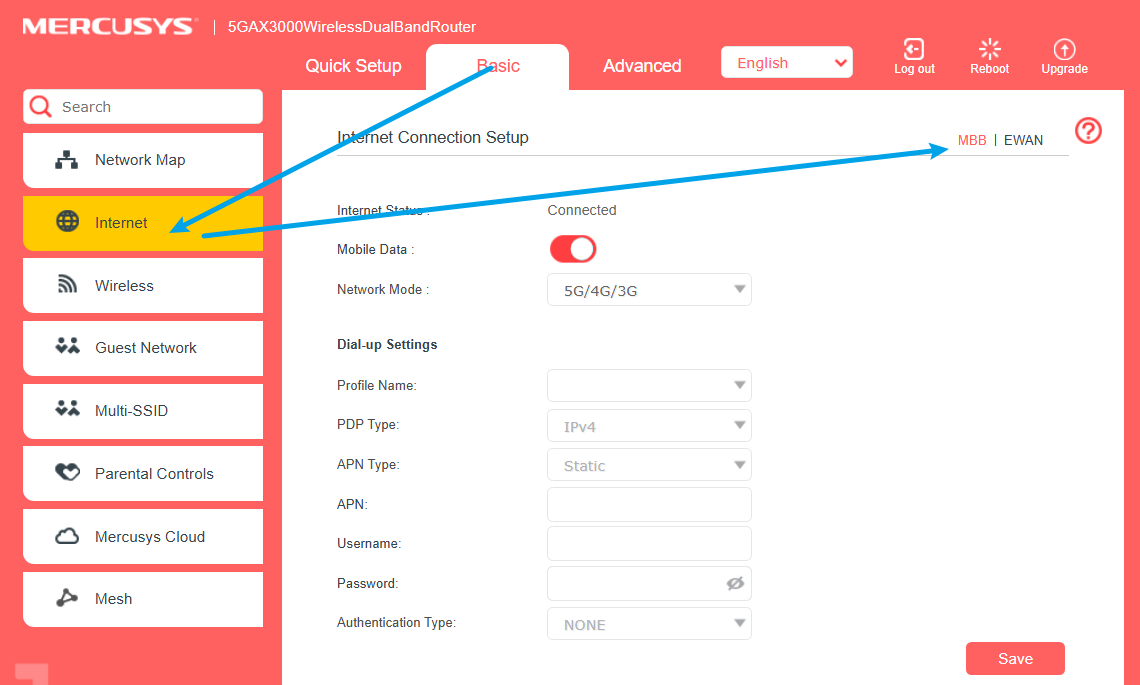
Step 3. Go to Basic > Internet page and select MBB. You are recommended to keep the default value.
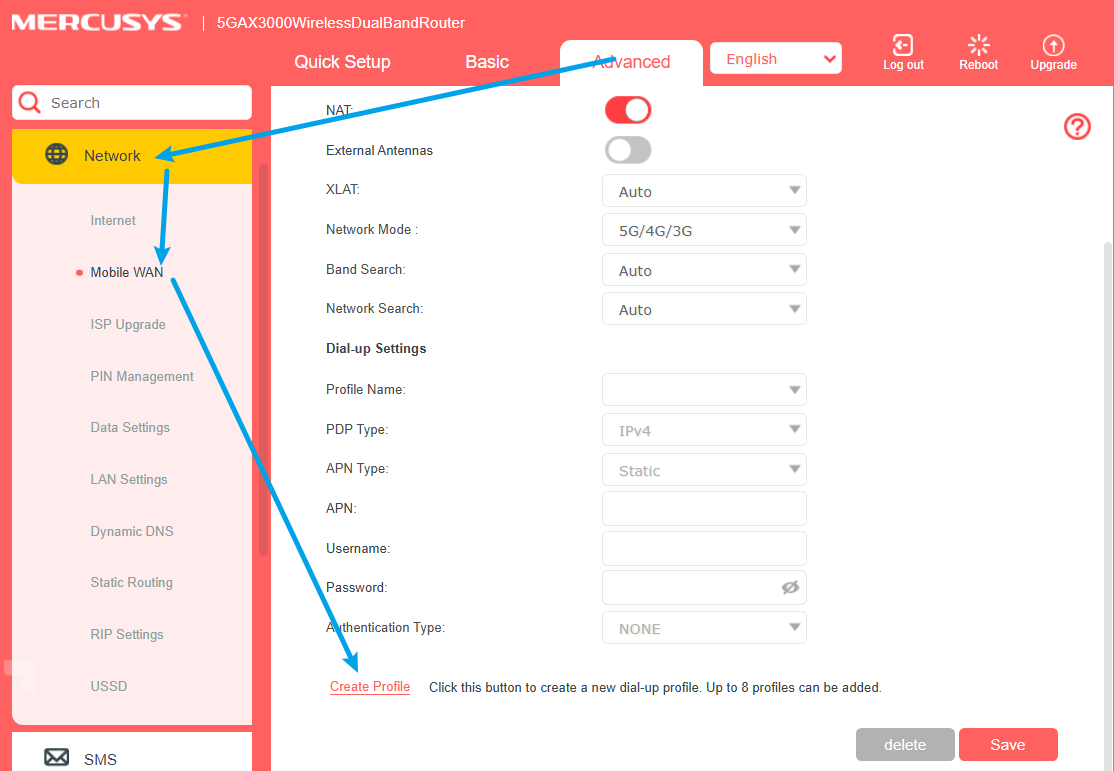
Step 4. If the router does not detect your ISP settings, you can create an internet connection in Advanced > Network > Mobile WAN > Create Profile.
Part 2: Set up in Wireless Router Mode
Step 1. Connect your router’s LAN/WAN port to the modem or the network port.
Step 2. Connect a computer/smartphone to the router's network via Ethernet cable or Wi-Fi, then visit mwlogin.net or 192.168.1.1 to log in to web management page of the MERCUSYS 5G/4G router.
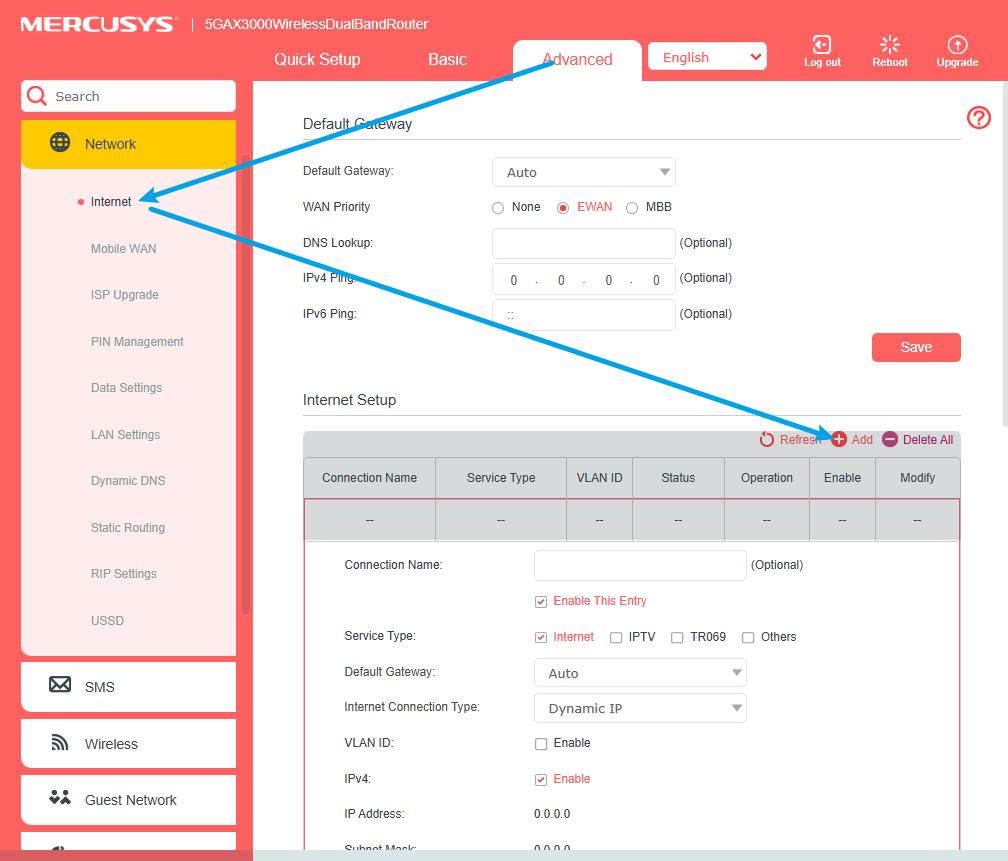
Step 3. Go to Advanced > Network > Internet > Internet Setup, then click Add to configure the corresponding parameters.
Step 4. At the top of the same page, select the EWAN for the WAN Priority and save it.
Note: For 5G router, Internet Backup ensures your device stays connected to the internet by automatically switching your MERCUSYS router to a backup network when the primary connection is unavailable, maintaining uninterrupted internet access.
Scenario 2: For 4G Router
Here we take MB235-4G as an example. The actual interface may vary slightly from the product model.
Part 1: Set up in 3G/4G Router Mode
Step 1. Power on the router and install a compatible SIM card by gently sliding the SIM card into the slot until you hear a click sound.
Step 2. Connect a computer/smartphone to the router's network via Ethernet cable or Wi-Fi, then visit mwlogin.net or 192.168.1.1 to log in to the web management page of the MERCUSYS 5G/4G router.
Step 3. Click Quick Setup, after configuring your time zone, confirm the parameters with the information provided by your ISP in the SIM part, and click Next.
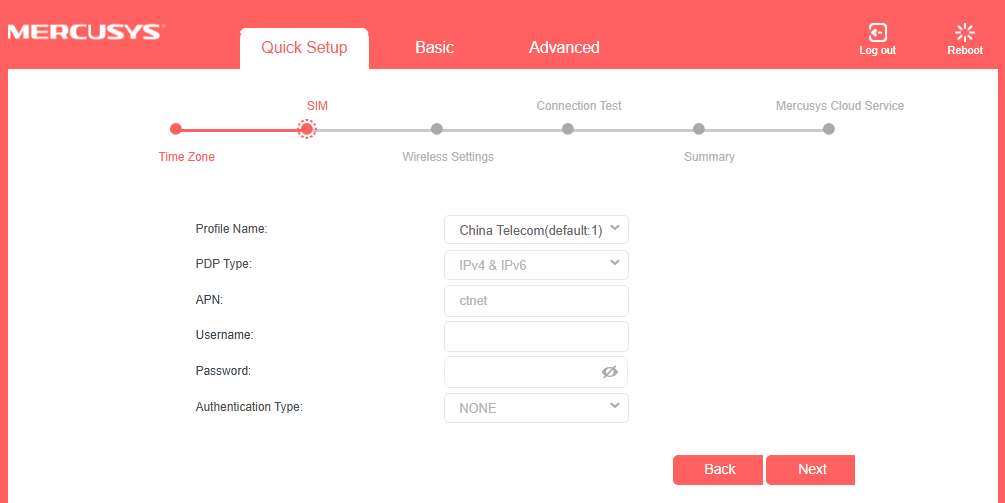
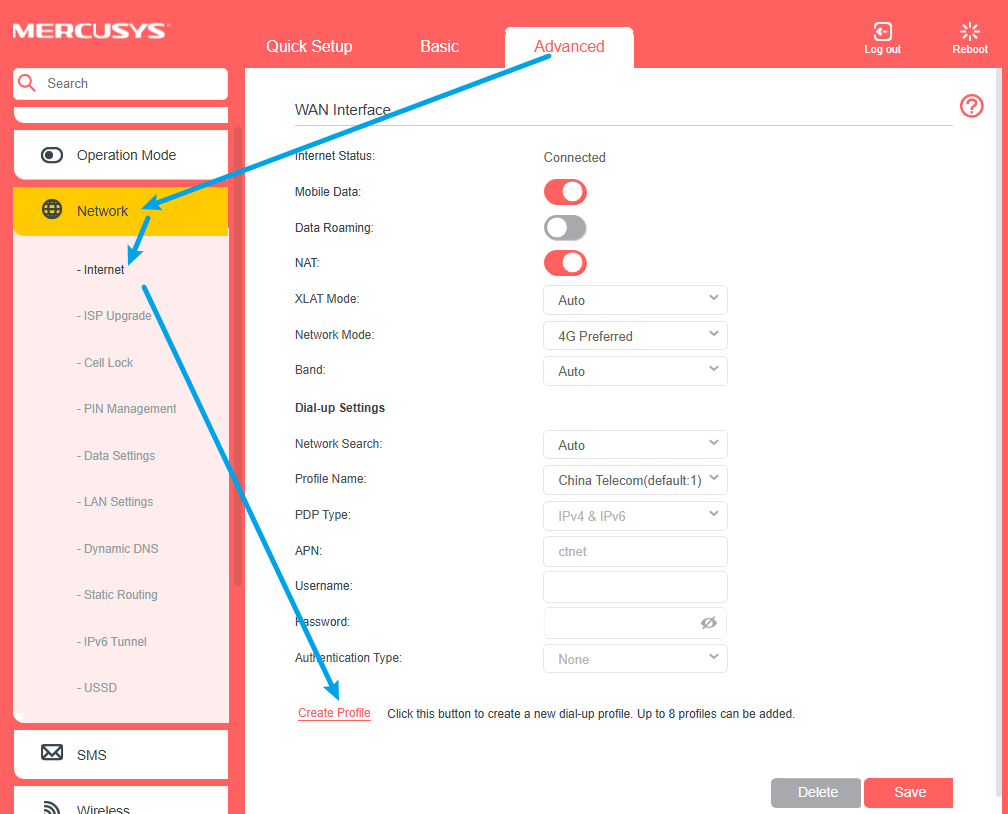
Step 4. If the router does not detect your ISP settings, you can create an internet connection in Advanced > Network > Internet > Create Profile.
Part 2: Set up in Wireless Router Mode
Step 1. Connect your router’s LAN4/WAN port to the modem or the network port.
Step 2. Connect a computer/smartphone to the router's network via Ethernet cable or Wi-Fi, then visit mwlogin.net or 192.168.1.1 to log in to web management page of the MERCUSYS 5G/4G router.
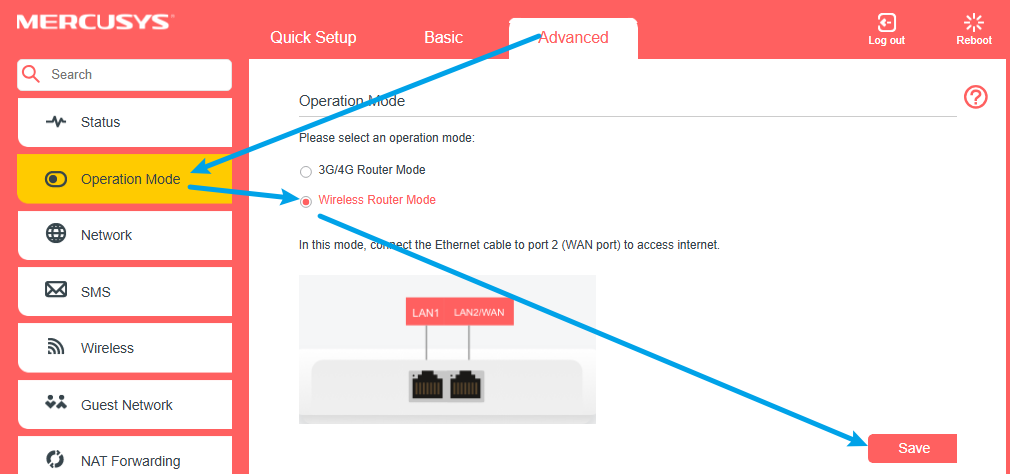
Step 3. Go to Advanced > Operation Mode. Select the Wireless Router Mode option, click Save, and then reboot to apply the changes.
Note: In Wireless Router mode, you can use a 3G/4G network as a backup for internet access. When 3G/4G/ Backup is enabled, your router will fail over to the 3G/4G network when the original network service fails.
Step 4. Go to Basic > Internet to enter the setup settings from your ISP.
To know more details of each function and configuration, please go to the Support Center to download the manual for your product.