How to fix a flickering issue on Live View of the MERCUSYS Camera
Introduction
If you see flickering or water-ripple bands sliding across the video image from your MERCUSYS Camera, this guide will help you troubleshoot the issue.
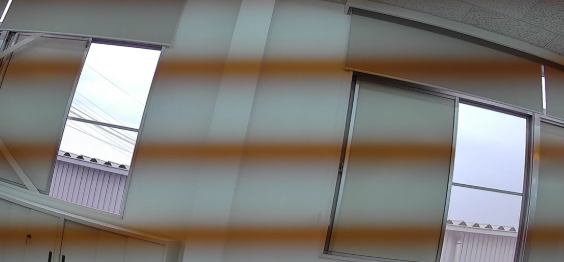
Flicker, often visible as rolling water ripple patterns or alternating light and dark bands, is caused by the periodic flickering of artificial light sources (such as fluorescent lamps) powered by AC electricity. These lights typically flicker at 50Hz or 60Hz, matching the local power frequency. The camera sensor exposes each row line by line; if the shutter speed does not align with the light source’s flicker frequency, each row captures a slightly different brightness, creating regular bands across the image. If the power frequency is set incorrectly, these bands can appear to move or roll on the screen.
As shown in the picture below, when the camera is pointed at a highlighted area, such as a lamp, flickering can be easily displayed on the screen.
Troubleshooting
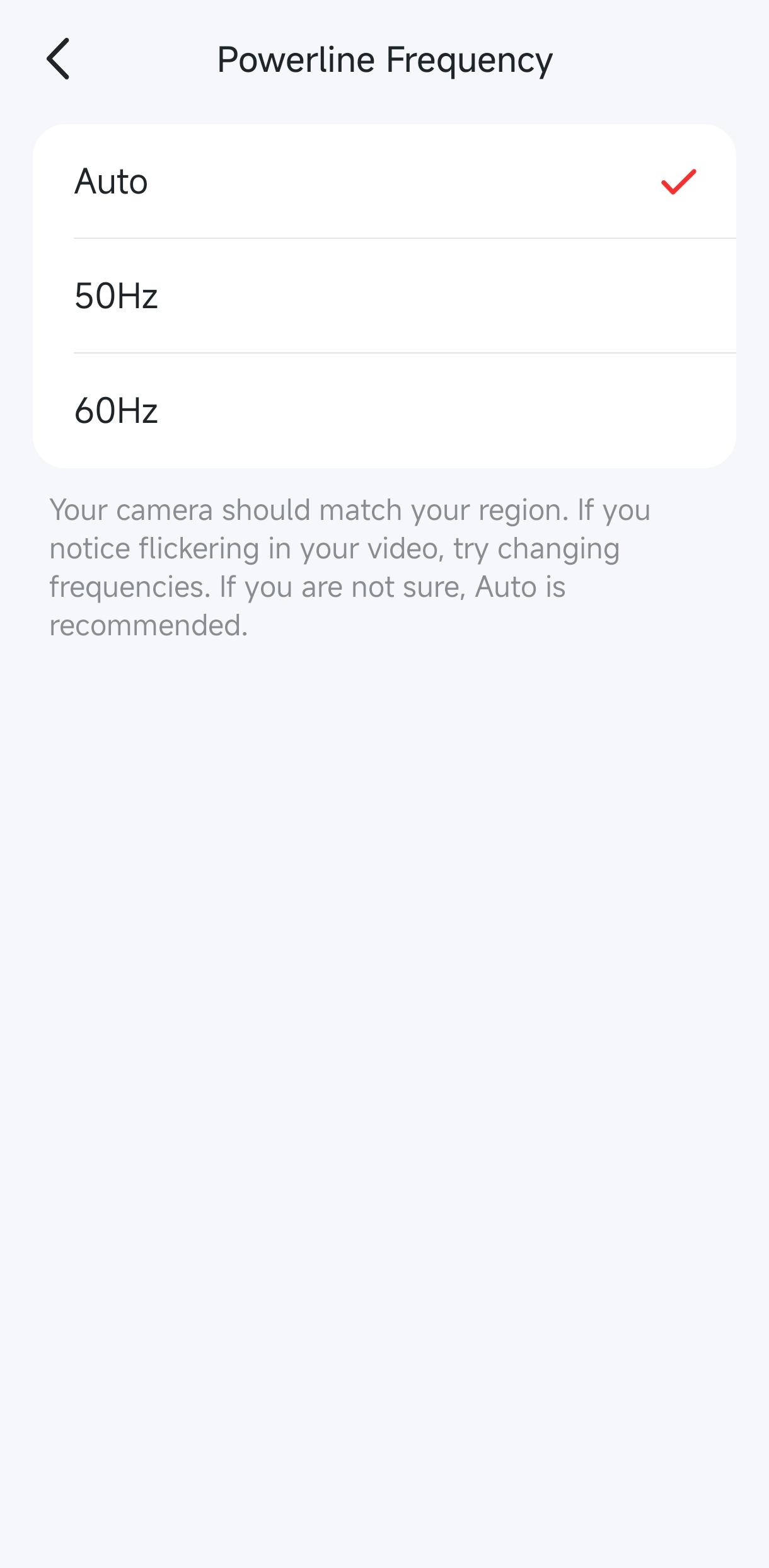
To reduce this issue, please try adjusting the Powerline Frequency setting:
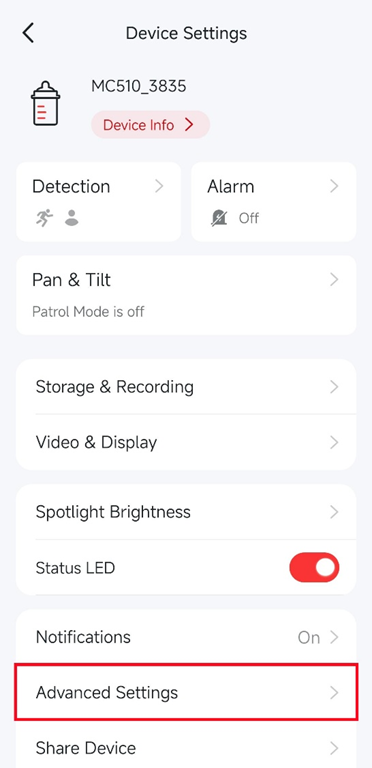
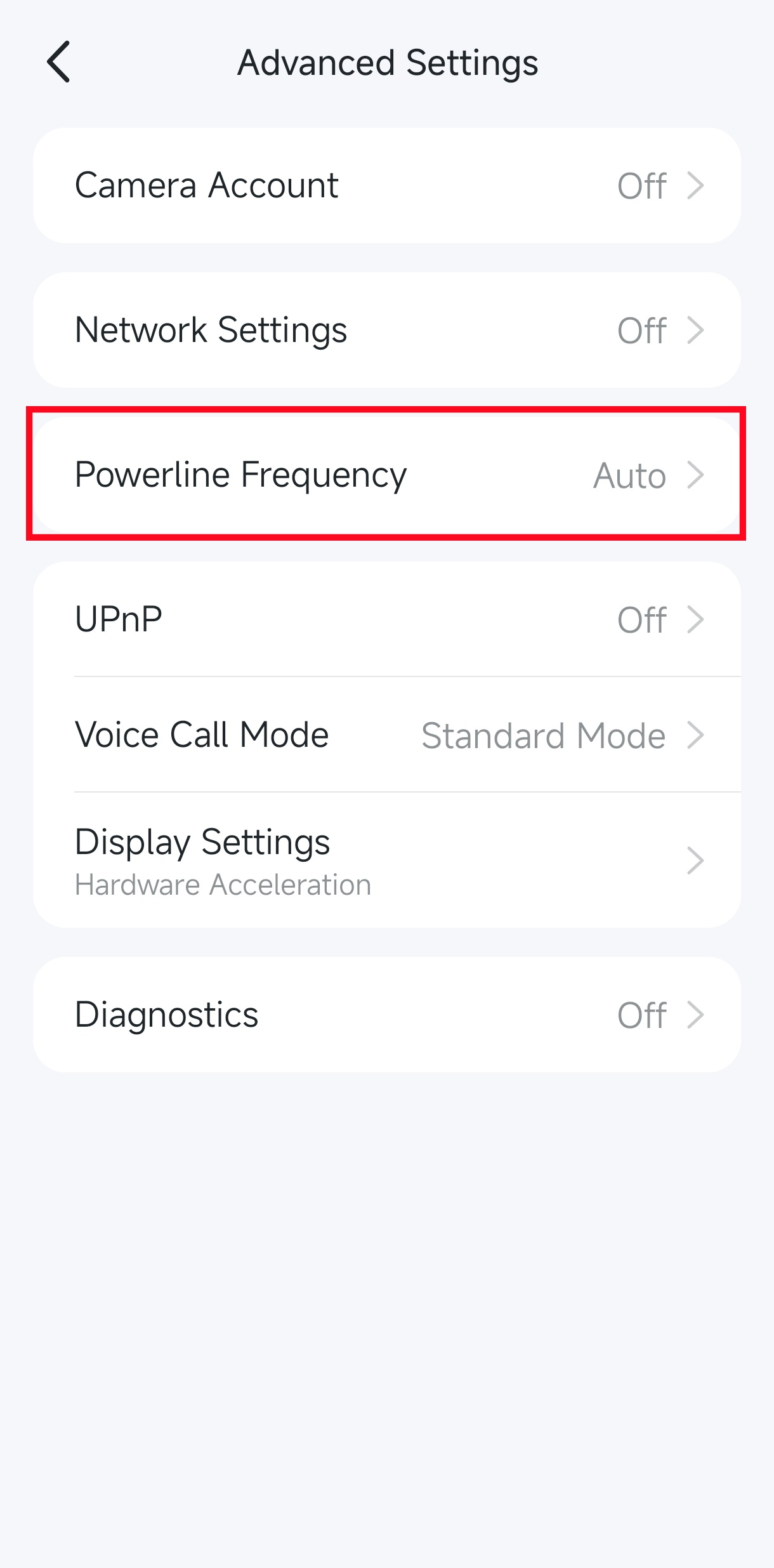
Open the MERCUSYS app and select the camera you want to configure. Tap Manage to enter the Live View page, then tap the gear icon to access Device Settings. Go to Advanced Settings > Powerline Frequency, and switch to the other available option. You can also select the frequency that matches your local power standard for optimal performance.
Note: If the light source in the environment (such as a desk lamp) has aged, its flicker frequency may become unstable, causing a rolling water ripple to appear in the camera’s live view. Therefore, please also check the stability of the surrounding light sources.