What if I fail to sign up or activate the MERCUSYS ID?
Introduction
If you don’t receive the verification email when registering for a MERCUSYS ID or resetting your password, it may be due to your email provider blocking MERCUSYS messages or your domain’s SMTP server restricting delivery based on its SPF (Sender Policy Framework) settings. SPF helps verify a sender’s IP to reduce spam, and MERCUSYS’s SPF configuration is compatible with most major email providers. This FAQ explains the common causes and offers practical steps to help you receive the email successfully.
Troubleshooting
Step 1. Check Inbox Storage
Make sure your MERCUSYS ID email inbox is not full. A full mailbox can block new messages, including MERCUSYS verification or password‑reset emails. Delete unneeded emails or files to free up space.
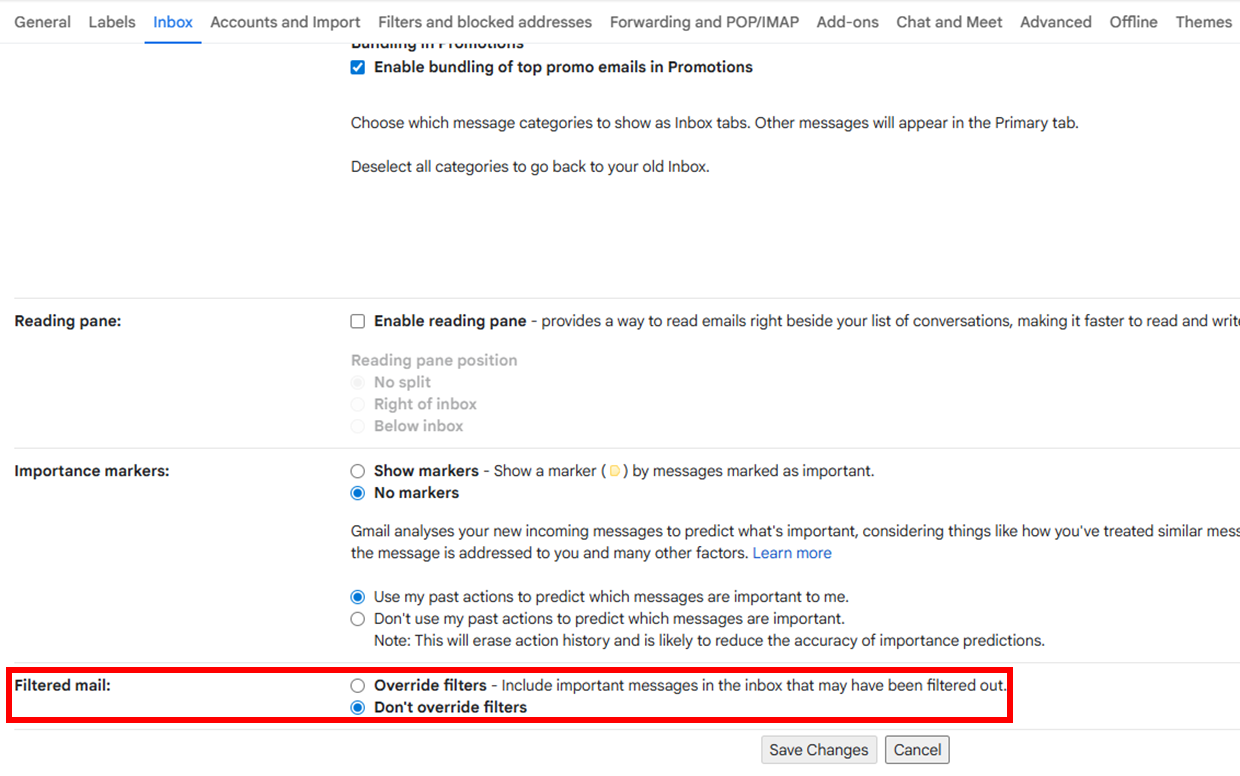
Step 2. Check Email Filter Settings
Review your MERCUSYS ID email filter and spam settings, and confirm no-reply@email.mercusys.com is not filtered out. Here, we use Gmail settings as an example.
Step 3. Add MERCUSYS to Allow list
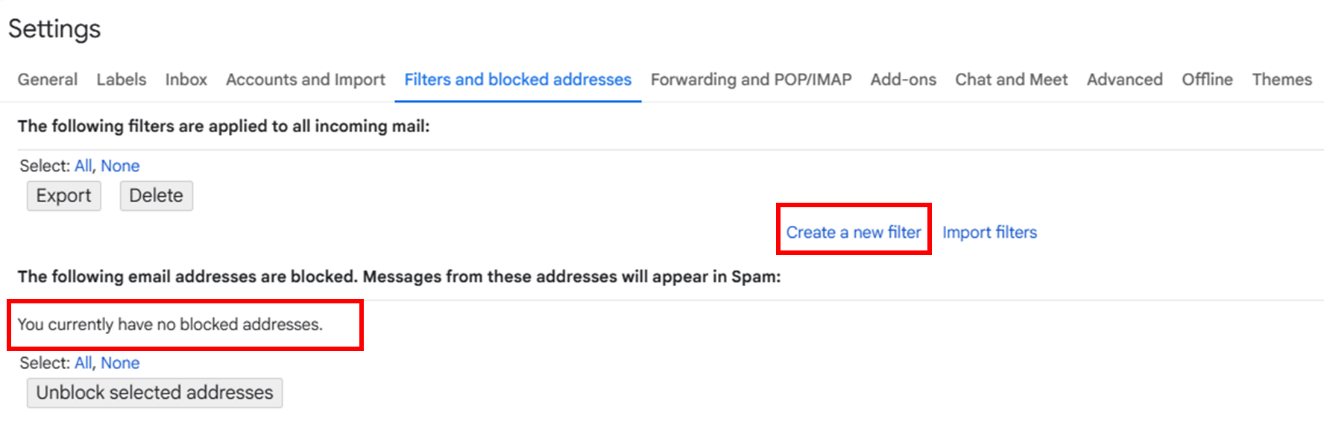
Add no-reply@email.mercusys.com to the White list by creating a new filter in your email settings.
In the Gmail Filters and blocked addressed setting page, you can also view the blocked email addresses of your account.
Step 4. Check Email Domain Type and Register a New MERCUSYS ID if needed
Some domains used by small businesses, medical, educational, or government institutions may have strict security policies that block automated emails. These domains are not recommended for MERCUSYS ID registration.
If possible, sign up for a new MERCUSYS ID using a major email provider, such as Gmail or Yahoo Mail.
Note: If the e-mail address you entered has been registered already, try to log into the MERCUSYS app directly. If you forget the password of the MERCUSYS ID, you can try the suggestions by referring to What can I do if I forget the password of my cloud account bound to the MERCUSYS wireless router?