Comment configurer le répéteur Mercusys via la page de gestion Web ?
Introduction
Ce guide vous accompagne tout au long de la configuration de votre répéteur WiFi MERCUSYS via son interface Web. Vous pouvez accéder à la page de configuration du répéteur à l'adresse mwlogin.net une fois votre appareil connecté.
Exigences
Un ordinateur (recommandé) ou un téléphone portable.
Placez le répéteur Wi-Fi à côté du routeur principal. Mettez-le sous tension et attendez qu'il redémarre complètement.
Obtenez le mot de passe WiFi correct de votre routeur hôte.
Configuration
Remarque : L’affichage peut différer selon les modèles, mais le chemin d’accès reste le même. Consultez la description pour connaître le chemin correct.
Étape 1. Connectez l'appareil au répéteur Wi-Fi.
Méthode 1 : Câblée
Connectez l'ordinateur au port Ethernet du répéteur Wi-Fi à l'aide d'un câble Ethernet.
Remarque : les modèles MW300RE et ME12 ne disposent pas de port Ethernet, veuillez vous référer à la méthode 2 .
Méthode 2 : Sans fil
Assurez-vous que l'appareil sans fil se connecte au réseau WiFi du répéteur.
Étape 2. Connectez-vous à la page de gestion Web du répéteur Wi-Fi.
Pour une compatibilité optimale avec la page de gestion web, ouvrez Chrome, Firefox ou Edge. Saisissez mwlogin.net dans la barre d'adresse de votre navigateur et appuyez sur Entrée .
Pour plus de détails, veuillez consulter la section « Comment se connecter à la page de gestion Web du répéteur Wi-Fi MERCUSYS » .
Étape 3 (facultative) : Choisissez le mode de fonctionnement.
Mode répéteur (par défaut) : dans ce mode, l’extenseur se connecte sans fil au réseau du routeur hôte. Prenons le mode répéteur comme exemple.
Mode point d'accès : dans ce mode, l'extenseur doit être connecté au port LAN du routeur hôte à l'aide d'un câble Ethernet.
Remarque : les modèles MW300RE et ME12 ne prennent pas en charge le mode point d’accès.
Si cette page n'apparaît pas, passez directement à l'étape 4 .
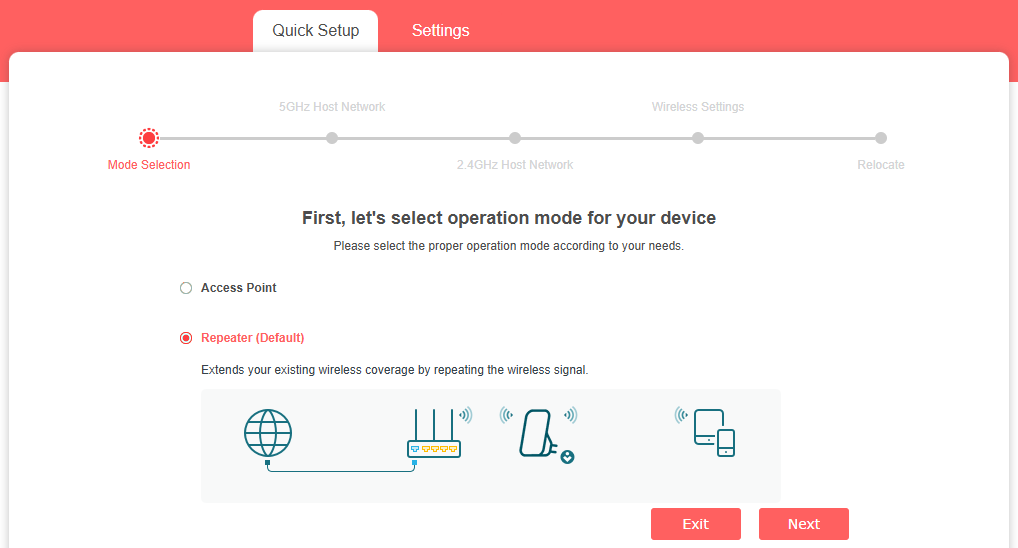
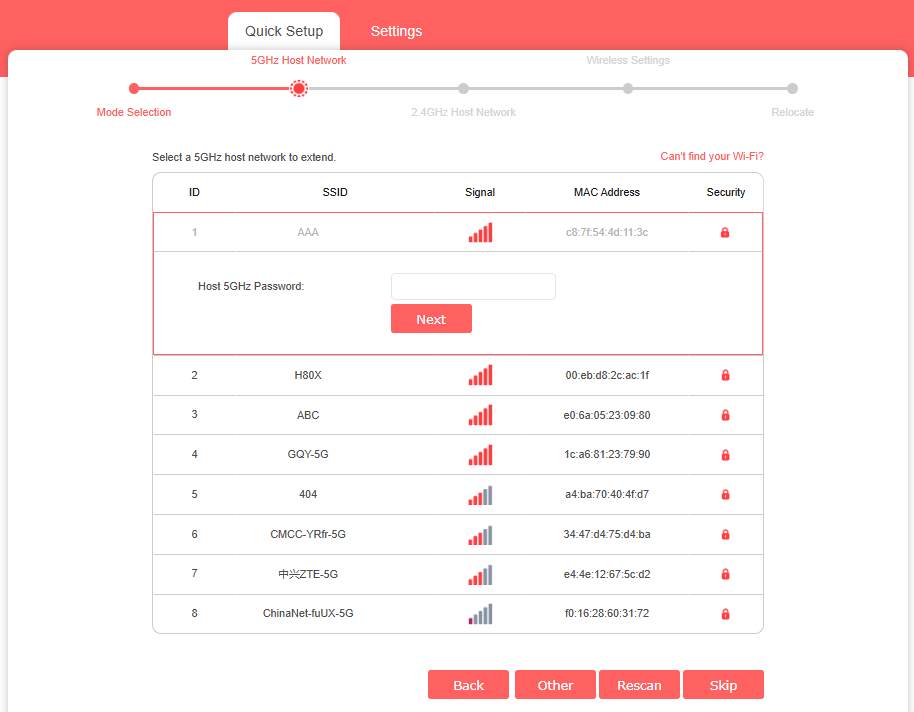
Étape 4. Sélectionnez le réseau hôte 5 GHz
Sélectionnez le SSID (nom du réseau) 5 GHz de votre routeur principal, saisissez son mot de passe (différent de celui que vous avez créé pour l'interface web), puis cliquez sur Suivant . Si votre répéteur ou votre routeur principal ne prend pas en charge le Wi-Fi 5 GHz, passez directement à l'étape 5 .
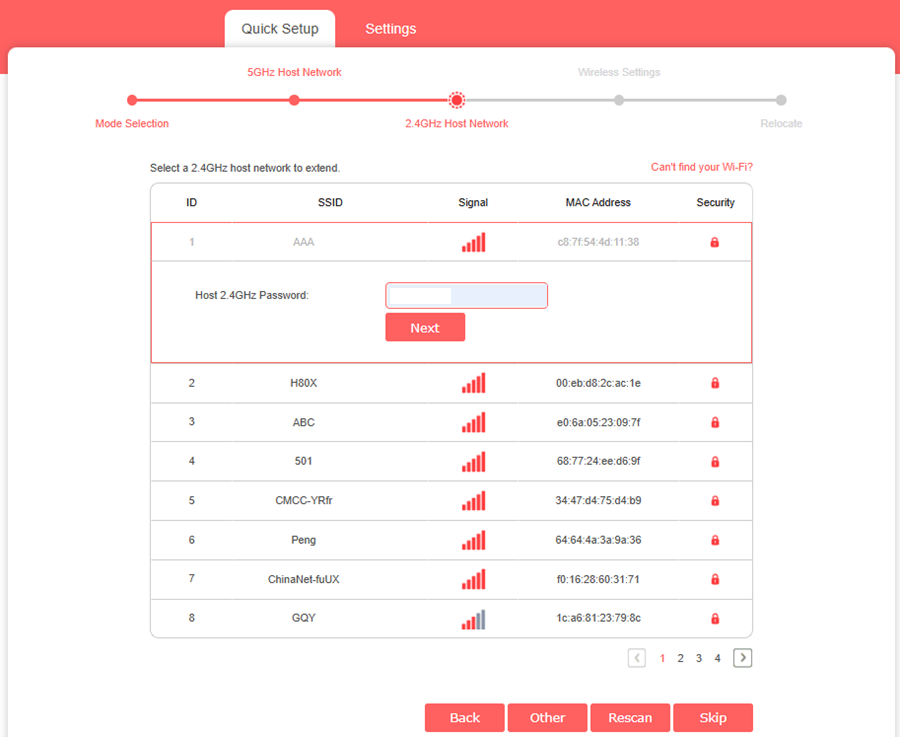
Étape 5 : Sélectionnez le réseau hôte 2,4 GHz
Sélectionnez le SSID 2,4 GHz (nom du réseau) de votre routeur hôte, entrez son mot de passe (PAS le mot de passe que vous venez de créer pour la gestion Web), et cliquez sur Suivant .
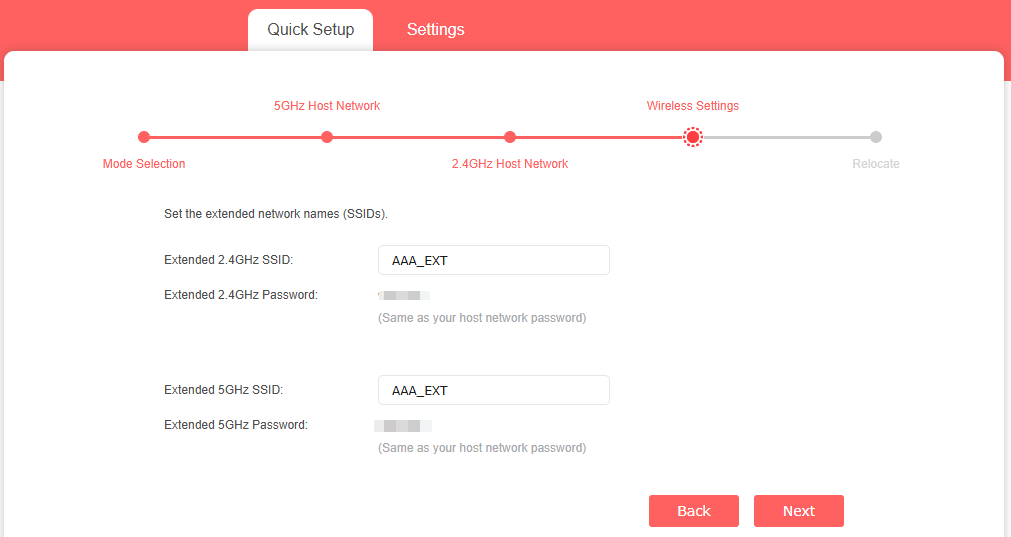
Étape 6. Définissez le nom Wi-Fi de votre répéteur.
Vous pouvez soit conserver les SSID (noms de réseau) par défaut, soit les personnaliser pour les réseaux étendus, puis cliquer sur Suivant
Étape 7. Attendez que l'extenseur applique les paramètres.
Le répéteur va redémarrer pour appliquer les nouveaux paramètres Wi-Fi. Veuillez patienter 1 à 2 minutes jusqu'à la fin du processus.
Étape 8. Installation terminée
L'installation de votre répéteur Wi-Fi est maintenant terminée. Déplacez-le pour vous connecter au réseau étendu et profitez d'Internet. Les deux réseaux étendus partagent les mêmes mots de passe Wi-Fi que vos réseaux principaux, mais peuvent avoir des noms de réseau différents si vous avez personnalisé les SSID lors de la configuration.
Dépannage
Vous n'arrivez pas à accéder à mwlogin.net ? Essayez de saisir directement 192.168.0.254 dans la barre d'adresse de votre navigateur. Assurez-vous que votre appareil est connecté au répéteur Wi-Fi et non à un autre réseau. Consultez la section « Que faire si je n'arrive pas à accéder à mwlogin.net ? » pour obtenir de l'aide.
L'assistant d'installation ne s'affiche pas ? Videz le cache de votre navigateur et réessayez. Vérifiez que vous utilisez bien Chrome, Firefox ou Edge et que vous avez saisi l'adresse dans la barre d'adresse et non dans la barre de recherche.
Vous n'arrivez pas à configurer votre répéteur Wi-Fi ? Consultez la section « Que faire si vous n'arrivez pas à configurer votre répéteur Wi-Fi MERCUSYS ? » .
Pour en savoir plus sur chaque fonction et configuration, veuillez vous rendre sur le Centre d'assistance pour télécharger le manuel de votre produit.