Cannot make my MERCUSYS cameras work with Alexa
Case 1 Unable to link with Alexa
1. Ensure your MERCUSYS and Alexa App is up to date. It is recommended to try uninstalling and reinstalling the two apps that need to be lined.
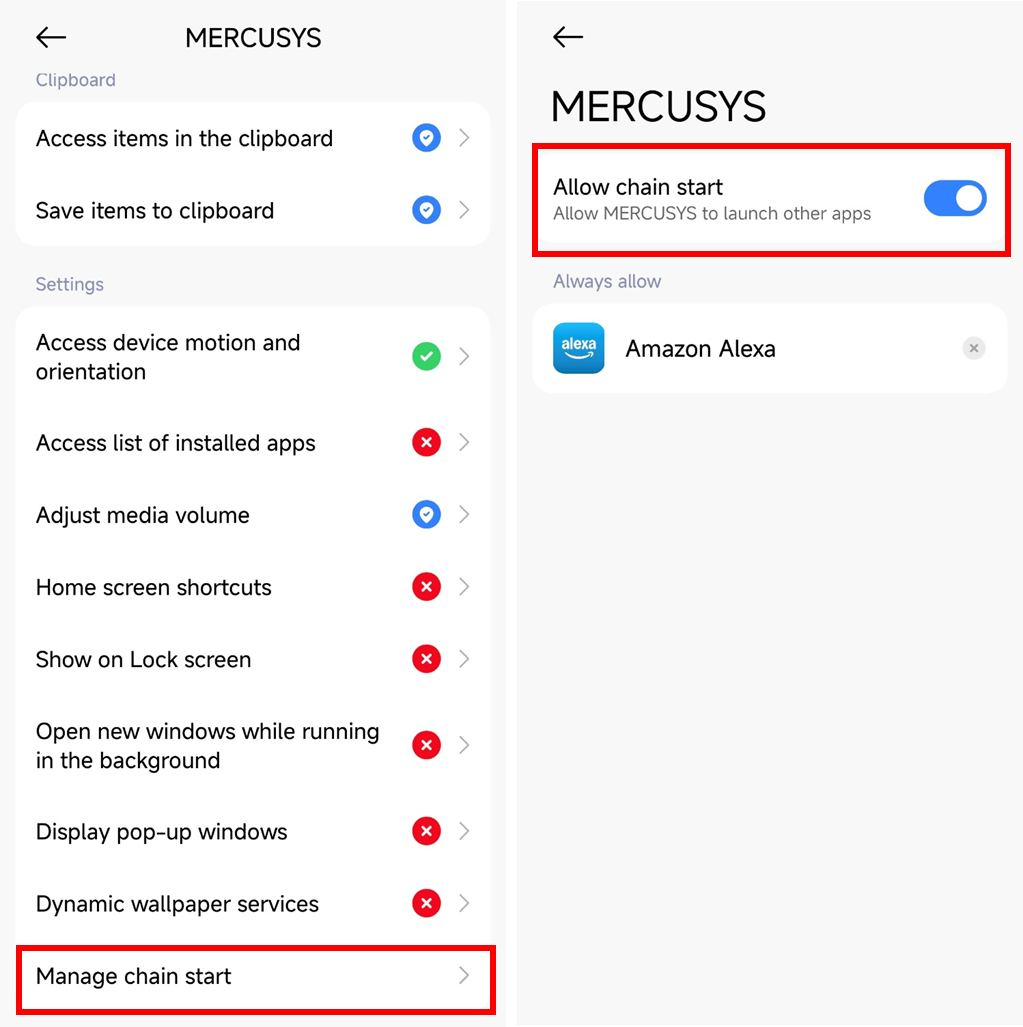
2. For Android phones, if you come to a web page instead of Alexa/MERCUSYS after starting the link procedure, please check your MERCUSYS APP settings if it is allowed to launch other apps.
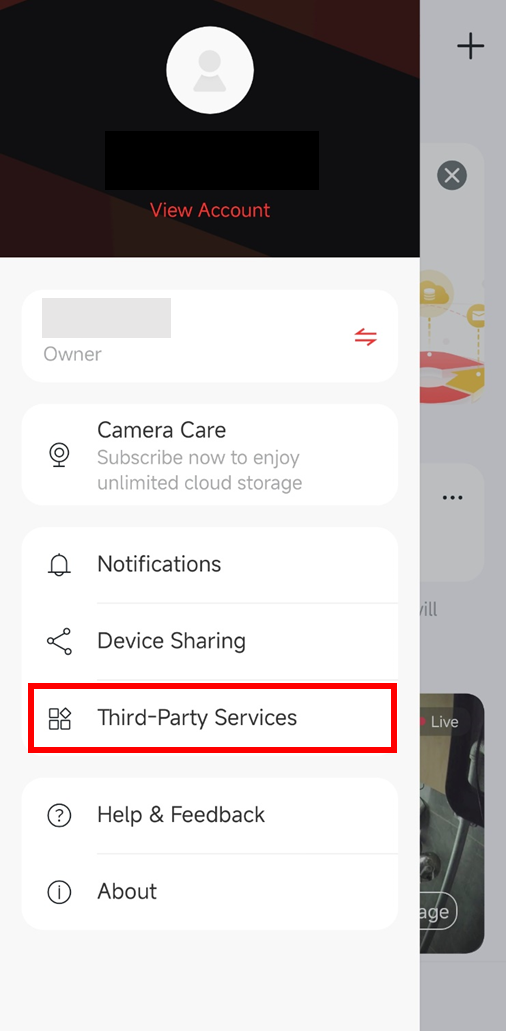
3. If you start the link in Alexa (enable the skill) but failed, please try to start the link in MERCUSYS App > Third-Party Services.
4. If you still can’t finish the link procedure, please contact MERCUSYS Technical Support and provide the exact time you fail to connect to Alexa.
Case 2 Cannot discover the device or some devices do not show up on Alexa app
1. Speak the voice command "discover my devices" to rediscover the device.
2. Open the Alexa app > go to More > Alexa+ Store > tap the Manage icon in the top-right corner > select Original Alexa Skills > locate MERCUSYS Skill > disable and then re-enable it.
3. Reset your MERCUSYS devices and re-link them in MERCUSYS app.
How to reset my MERCUSYS camera
4. If your devices still can’t be discovered in Alexa app, please record the time of your last attempt to discover devices and contact MERCUSYS Technical Support.
Case 3 Fail to watch live stream in Alexa app/Echo Show
Note: Not all cameras support this feature.
1. Disable Wi-Fi of your phone, and check if you can access the device via cellular data on MERCUSYS app. If not, please refer to What should I do if I can't view the MERCUSYS camera? to troubleshoot.
2. If you can successfully access the device on MERCUSYS app via cellular data, please record the time of the failed attempt and contact MERCUSYS Technical Support.
Case 4 Device is not responding to voice command
1. Check if you can manually control the device on Alexa app. If not, please refer to troubleshooting steps in Case 5.
2. Ensure that you logged in to the primary user account on the Alexa app. A Household account cannot control devices via voice commands. If you are unsure, use the voice command to have Alexa switch accounts: "Alexa, switch accounts".
Case 5 Cannot control device in Alexa app
1. Disable Wi-Fi of your phone, and check if you can access the device via cellular data on MERCUSYS app. If not, please refer to How to check and improve the network connection stability of MERCUSYS camera for device network troubleshooting.
2. If you can successfully control the device on MERCUSYS app via cellular data, please record the time of your last attempt to manage the device in Alexa and contact MERCUSYS Technical Support.