How to troubleshoot if your computer goes to a blue screen when installing MERCUSYS wireless adapter
Introduction
If your computer encounters a blue screen while installing the MERCUSYS wireless adapter, it could be due to various reasons, including software or hardware problems.
Software-related: The MERCUSYS driver might not be compatible with your operating system, or there is a conflict between the driver and other software or files on your computer.
Hardware-related: Your computer’s motherboard may not be compatible with the MERCUSYS wireless adapter.
This guide focuses on resolving typical software conflicts when the MERCUSYS adapter driver clashes with other software or files on your computer.
Troubleshooting
Step 1. When the blue screen appears, it usually provides some error details that can help pinpoint the cause of the problem.
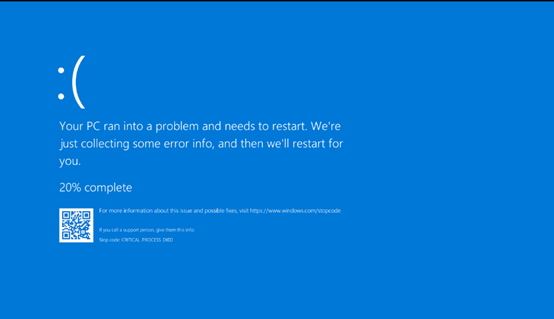
Step 2. From the error message on the blue screen, identify the conflicting driver. For example, the blue screen points to a driver file rtwlanu.sys.
Step 3. Unplug the MERCUSYS adapter from your computer. Restart your computer to ensure it boots up without any issues.
Step 4. Navigate to the following directory on your computer:
C:\Windows\System32\drivers
Look for the rtwlanu.sys driver file in this folder and delete it.
Step 5. Plug the MERCUSYS adapter back into the computer. Download and install the official driver for your MERCUSYS wireless adapter from our website.
Step 6. If the issue remains unresolved, please collect the following information and contact MERCUSYS support:
1). The motherboard of the computer.
2). The driver info of Mercusys adapter.
3). Kernel dump file. Refer to How to find dump file to analyze BSOD problem caused by installing driver to generate a Kernel memory dump.
4). The model number of the main router.