How to add the MERCUSYS app to the allowed list to allow interruptions during Do Not Disturb
If you want to receive Critical Alerts from the MERCUSYS app even when your Android phone is in Do Not Disturb mode, please add the MERCUSYS app to the allowed list on your phone.
Different brands of Android phones vary in functionality and settings. Here are some common ones for your reference. Please follow the instructions to access Do Not Disturb and find App notifications/App, then add the MERCUSYS app to the allowed list.
|
Phone Model |
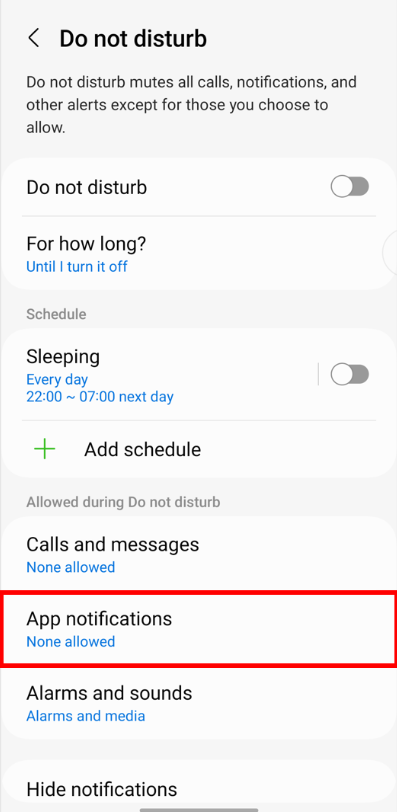
Samsung Galaxy S22+ |
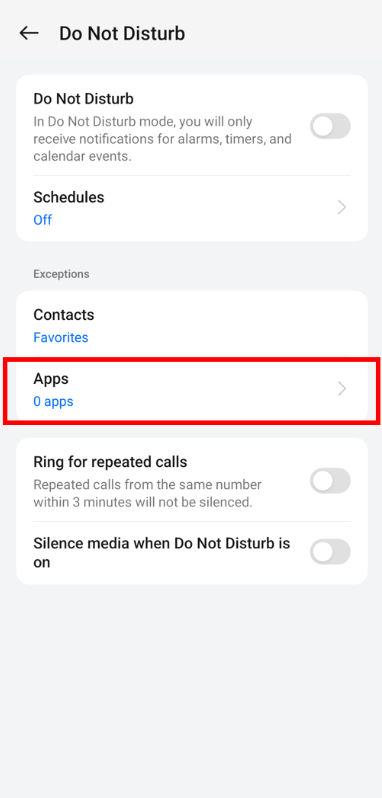
Oppo K12x |
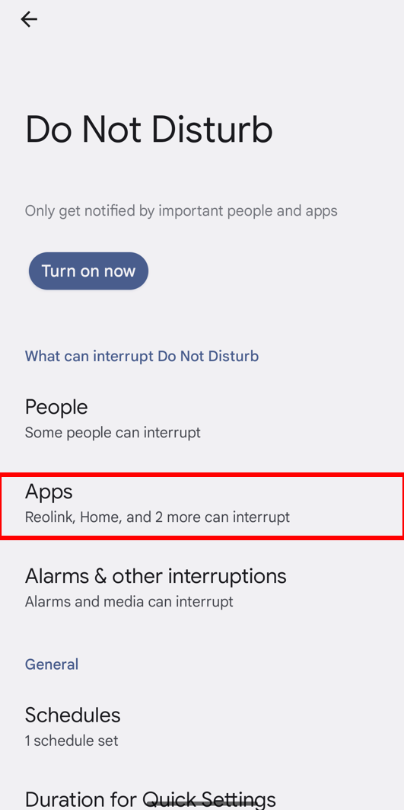
Pixel 4 |
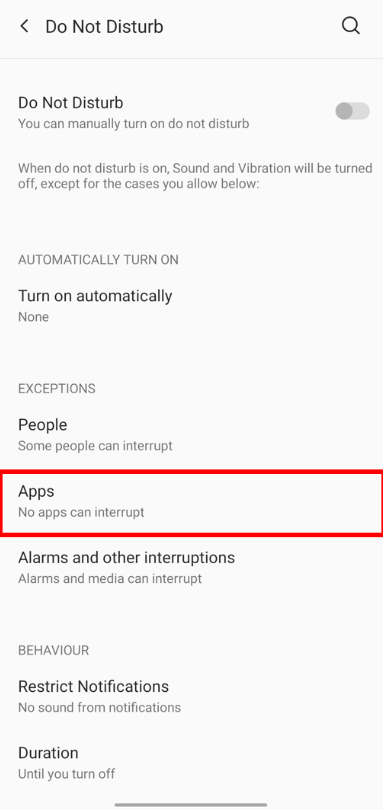
OnePlus 7T |
|
Phone Settings |
Go to Settings > Notifications > Do not disturb > App notifications.
|
Go to Settings > Sounds & vibration > Do Not Disturb > Apps.
|
Go to Settings > Sounds & vibration > Do Not Disturb > Apps.
|
Go to Settings > Sounds & vibration > Do Not Disturb > Apps.
|
If you failed to add the MERCUSYS app to the allowed list with the above method, please access Critical Alerts and enable Override Do Not Disturb/Allow interruptions.
|
Phone Model |
Pixel 4 |
OnePlus 7T |
Honor ViewPad 6 |
|
Phone Settings |
Go to Settings > Apps > MERCUSYS > Notifications > Critical Alerts. |
Go to Settings > Apps and notifications > MERCUSYS > Notifications > Critical Alerts. |
Go to Apps > MERCUSYS > Notifications > Critical Alerts. |
Note: Xiaomi doesn’t support adding an app to the allowed list in Do Not Disturb mode. If you want to receive critical alerts with sound/vibration and visible pop-up notifications, please turn off Do Not Disturb on your Xiaomi phone.