How to set up Internet Backup on MERCUSYS 5G router
Introduction
Internet Backup ensures your device stays connected to the internet by automatically switching your MERCUSYS router to a backup network when the primary connection is unavailable, maintaining uninterrupted internet access. This article provides step-by-step instructions on how to configure Internet Backup on a MERCUSYS 5G Router.
Requirements
A compatible SIM card is inserted into your MERCUSYS 5G Router.
The WAN/LAN port of your MERCUSYS 5G Router is connected to your Ethernet network via an Ethernet cable, typically to a modem or gateway router.
Configuration
The web interface doesn’t have a single "Internet Backup" toggle. This function is configured by setting the WAN Priority, as detailed below. Here we take MB520-5G as an example.
Step 1. Log in to the router’s web management page by referring to How to log in to the management interface of MERCUSYS 5G/4G Wi-Fi Router & Mobile Wi-Fi.
Step 2. Ensure both Ethernet and Mobile WAN connections are set up:
Ethernet WAN: Configured in Web GUI > Advanced > Network > Internet > Internet Setup.
Mobile WAN: Configured in Web GUI > Advanced > Network > Mobile WAN.
Step 3. Go to Advanced > Network > Internet > WAN Priority to adjust the settings according to your requirements:
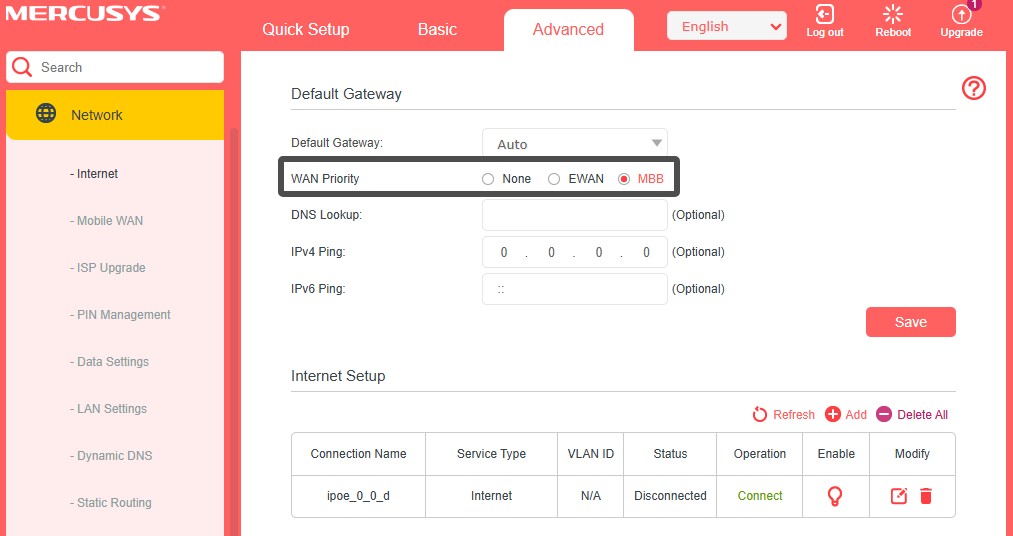
EWAN: Prioritizes Ethernet Internet.
MBB: Prioritizes mobile broadband.
None: The device maintains the first established connection. If that connection fails, it will automatically switch to the other available one.
Step 4. Select the preferred WAN priority and save the settings.
Get to know more details of each function and configuration please go to Support Center to download the manual of your product.