MB113-4G [V1] | 300 Mbps Wireless 4G LTE Portable Router
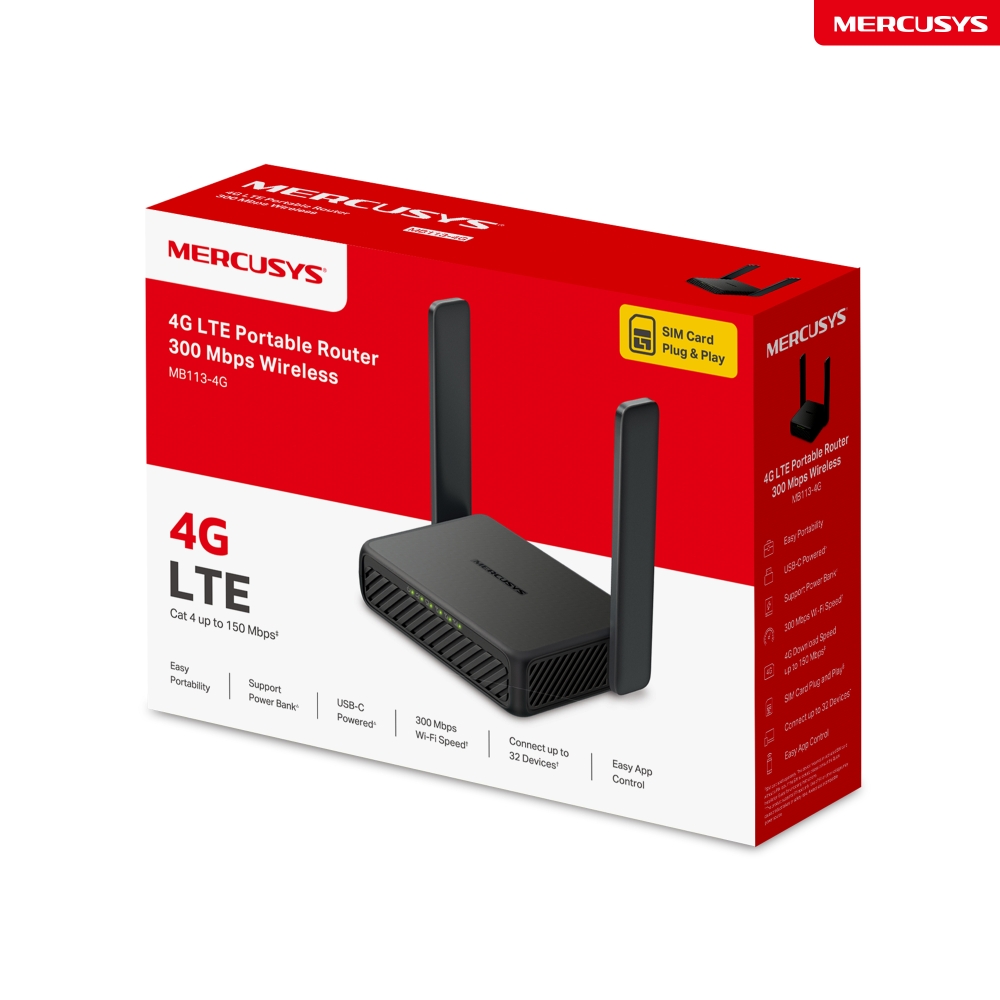
MB113-4G
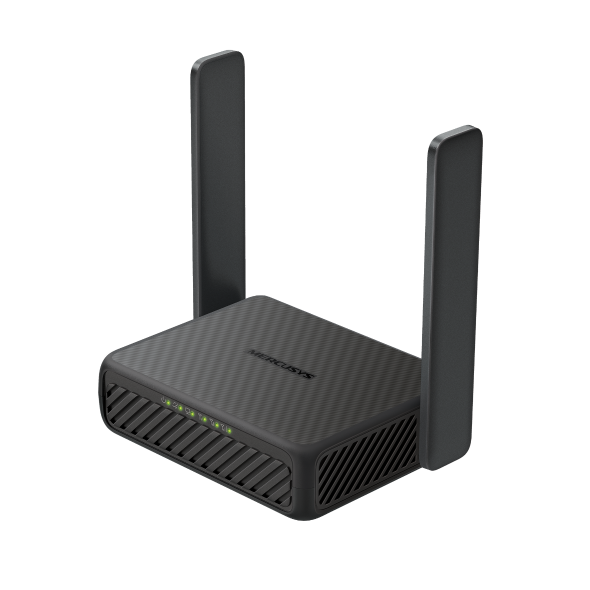
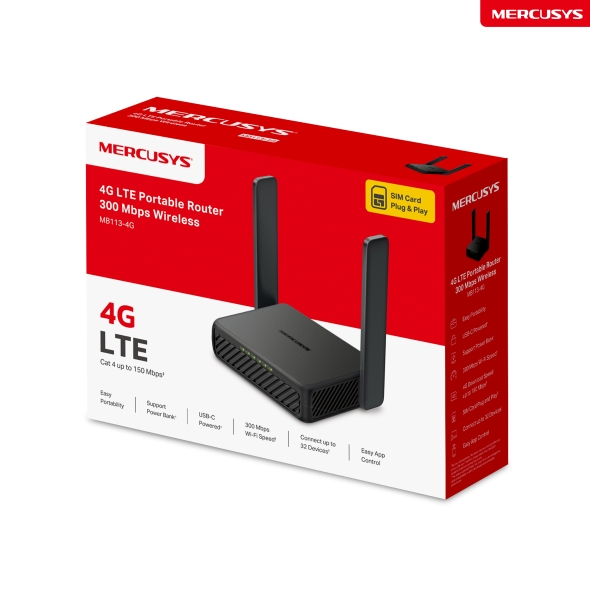
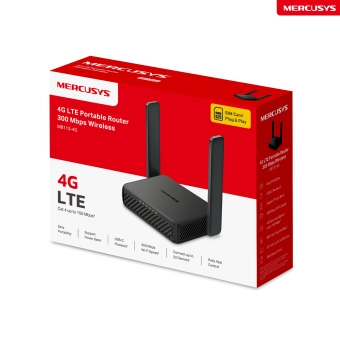
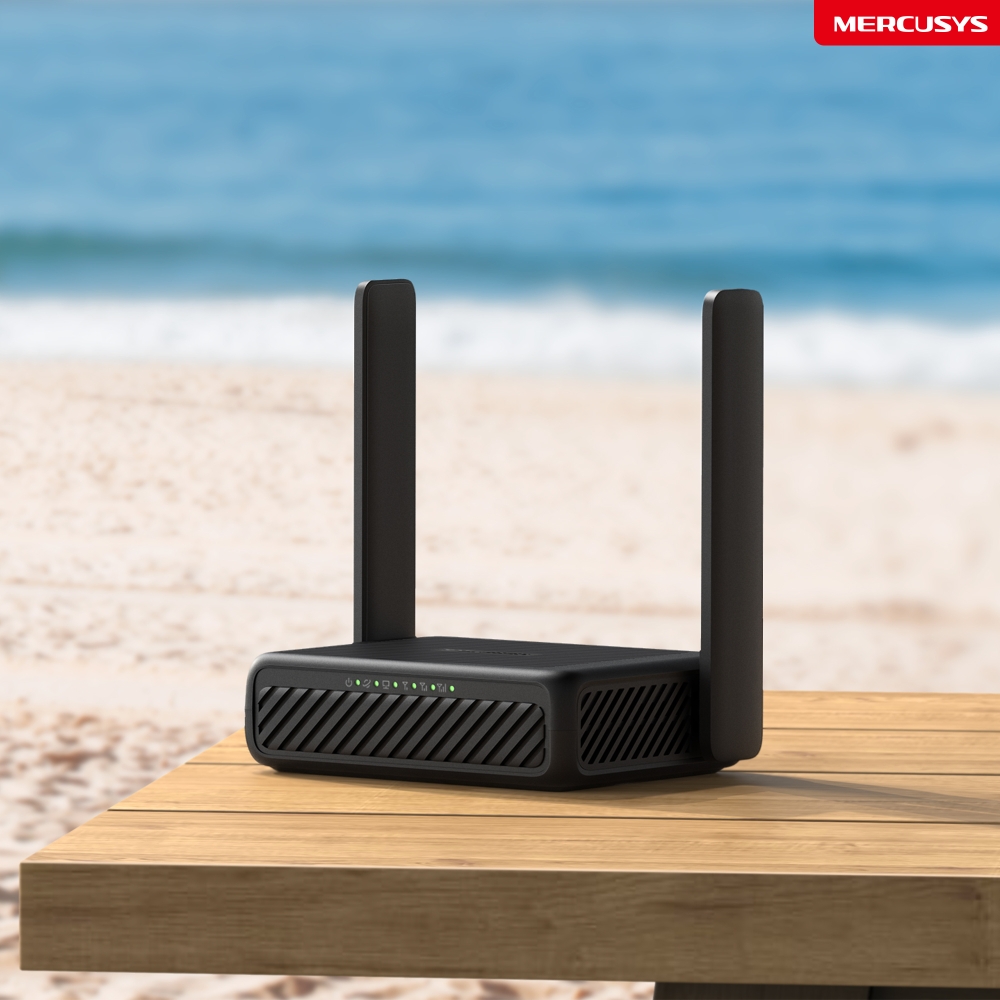
300 Mbps Wireless 4G LTE Portable Router
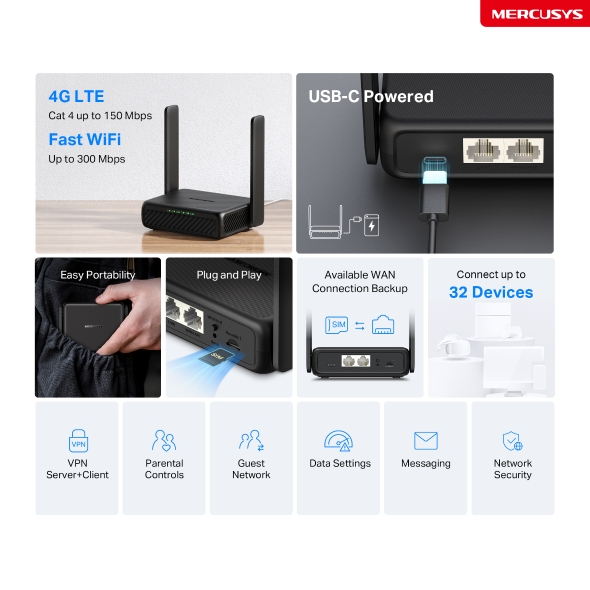
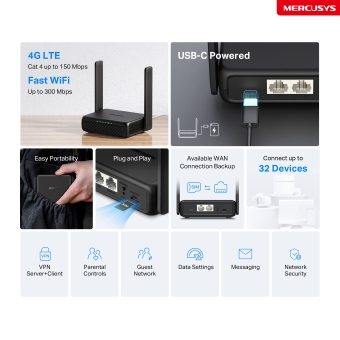
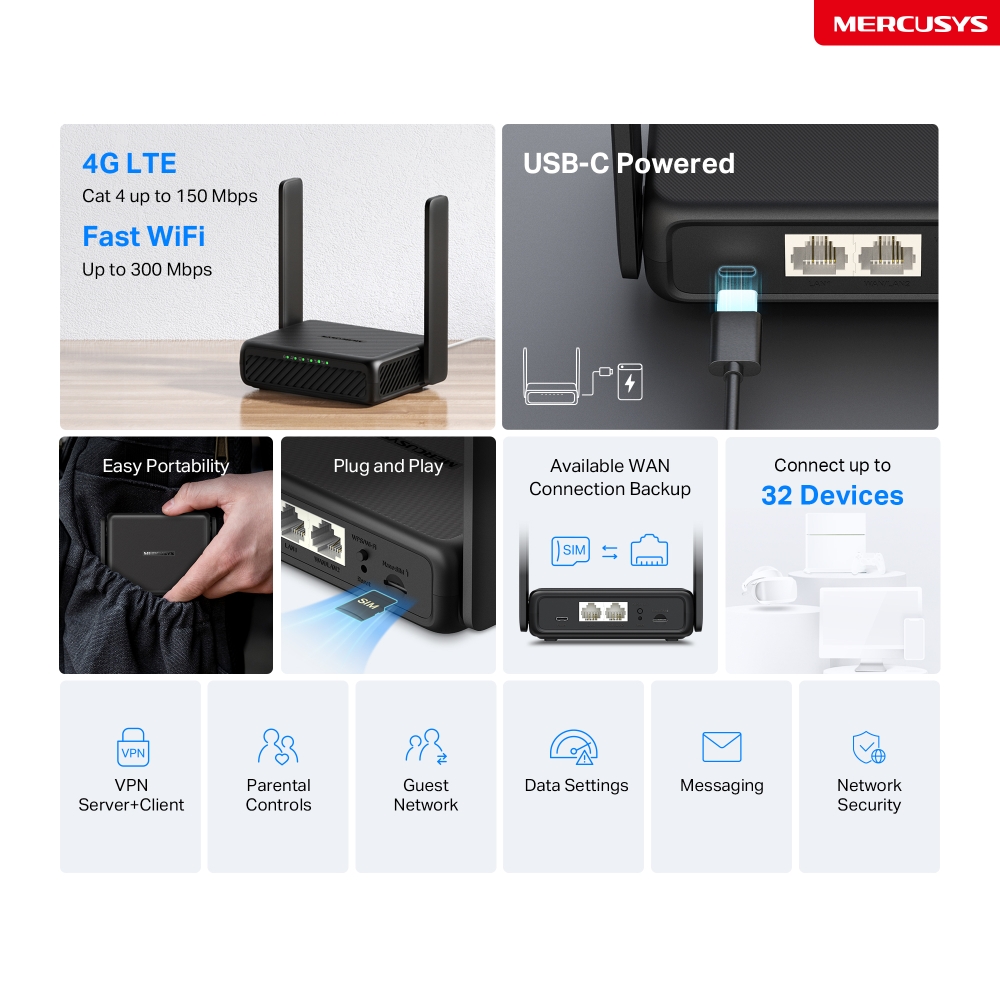
- 4G Network – Share internet access with up to 32 Wi-Fi devices and enjoy download speeds of up to 150 Mbps△.
- 300 Mbps WiFi – Fast WiFi speeds up to 300 Mbps to share your network ☆.
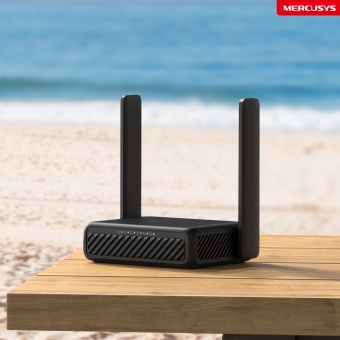
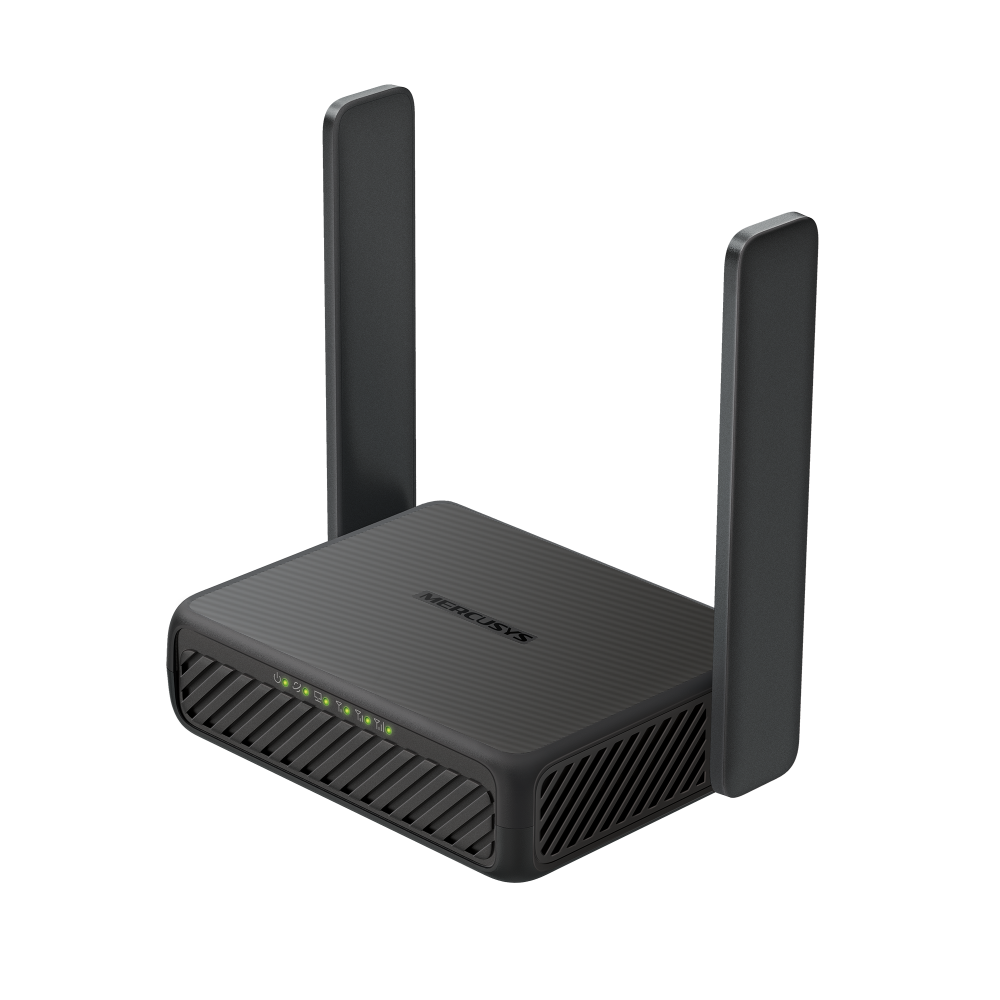
- Easy Portability – Phone-sized with foldable antennas, MB113-4G slips easily into a bag or even your pocket.
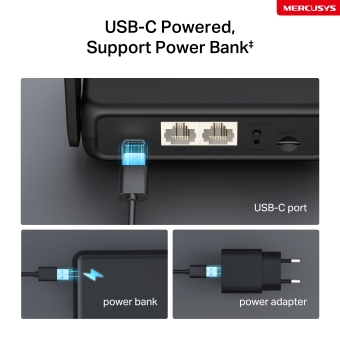
- Support Power Bank – With its USB-C port, MB113-4G also supports power bank charging ‡.
- Plug a SIM Card and Play – No configurations needed, compatibility of SIM cards are assured by years of field tests §.
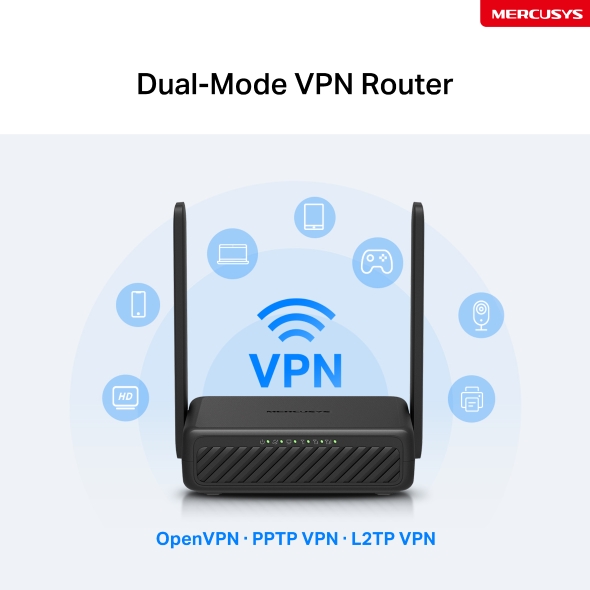
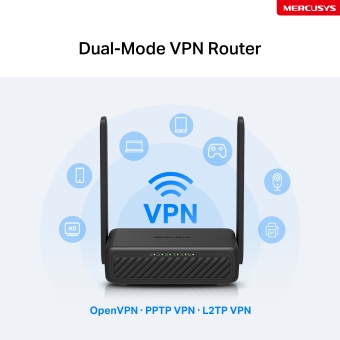
- Dual-Mode VPN Router - One device, two modes: Client Mode encrypts your entire home network; Server Mode lets you access home devices remotely.
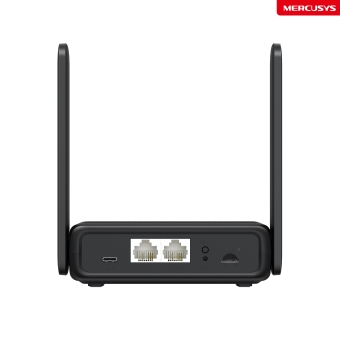
- Wi-Fi Router Mode – Plug an Ethernet cable into the LAN/WAN port for flexible access if you can't get a 4G connection.
*Notes: Make sure your SIM card is unlocked.
Server+Client
Controls
Network
Settings
Security
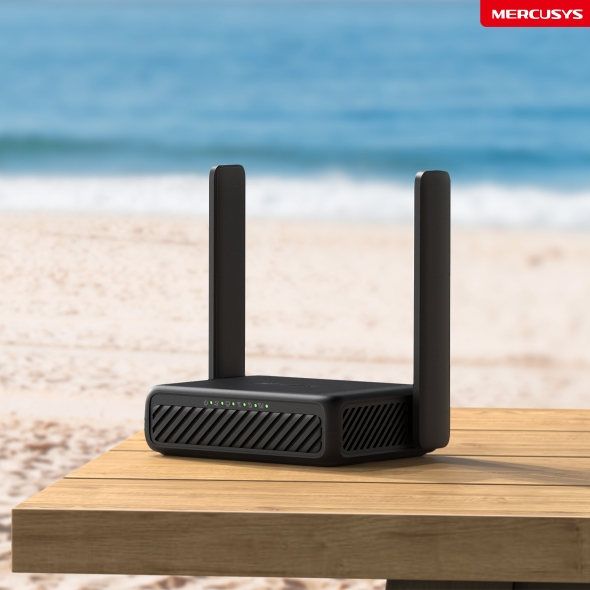
Get WiFi Where You Need It
Enjoy unmatched convenience and versatility with fast, stable WiFi whether you're at home or working remotely.
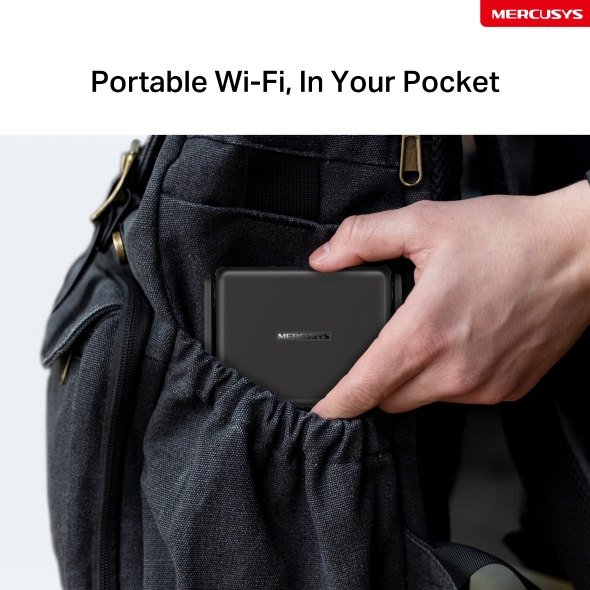
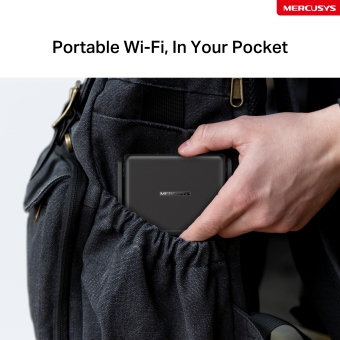
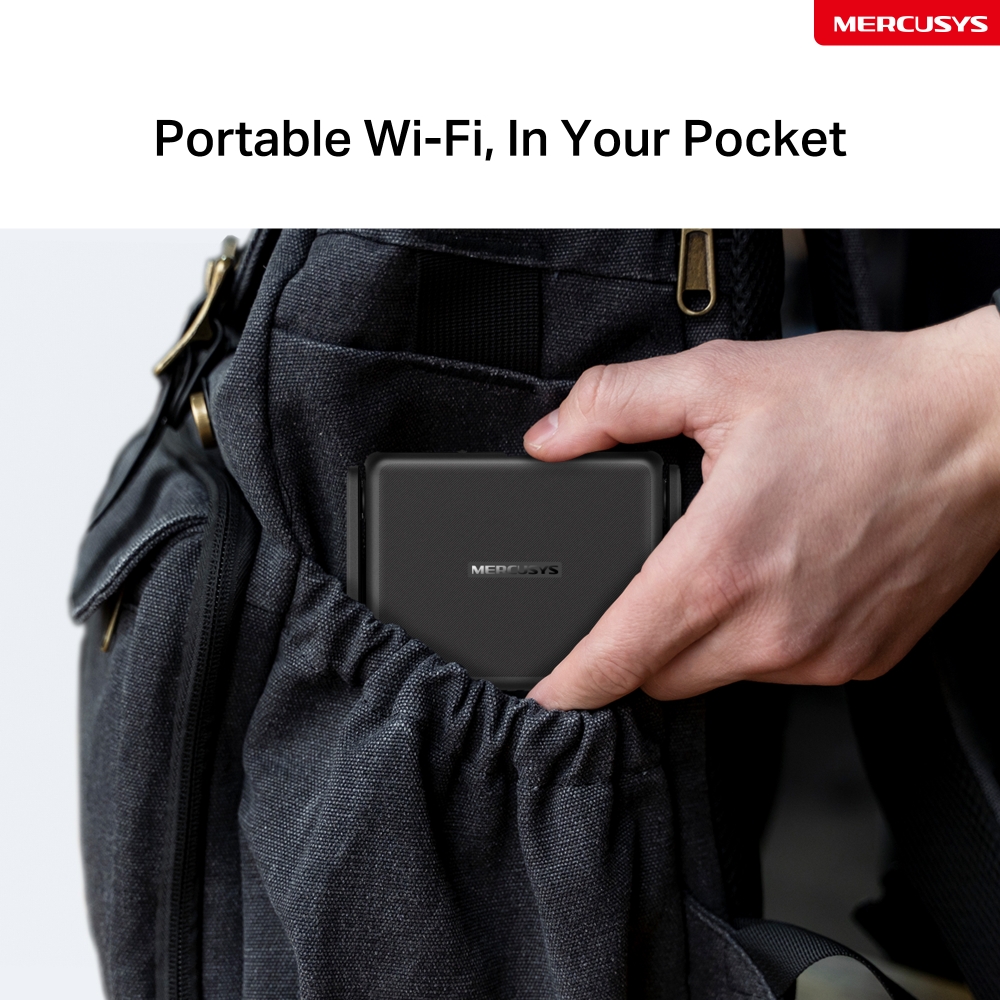
Portable Wi-Fi, In Your Pocket
Phone-sized with foldable antenna, MB113-4G slips easily into a bag or even your pocket.
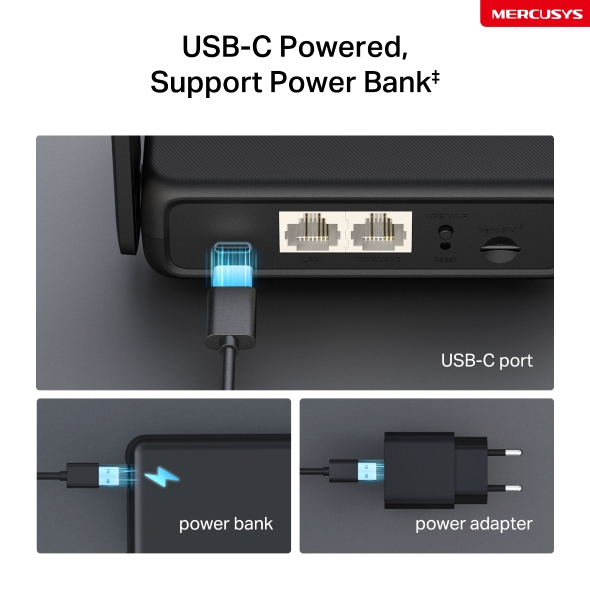
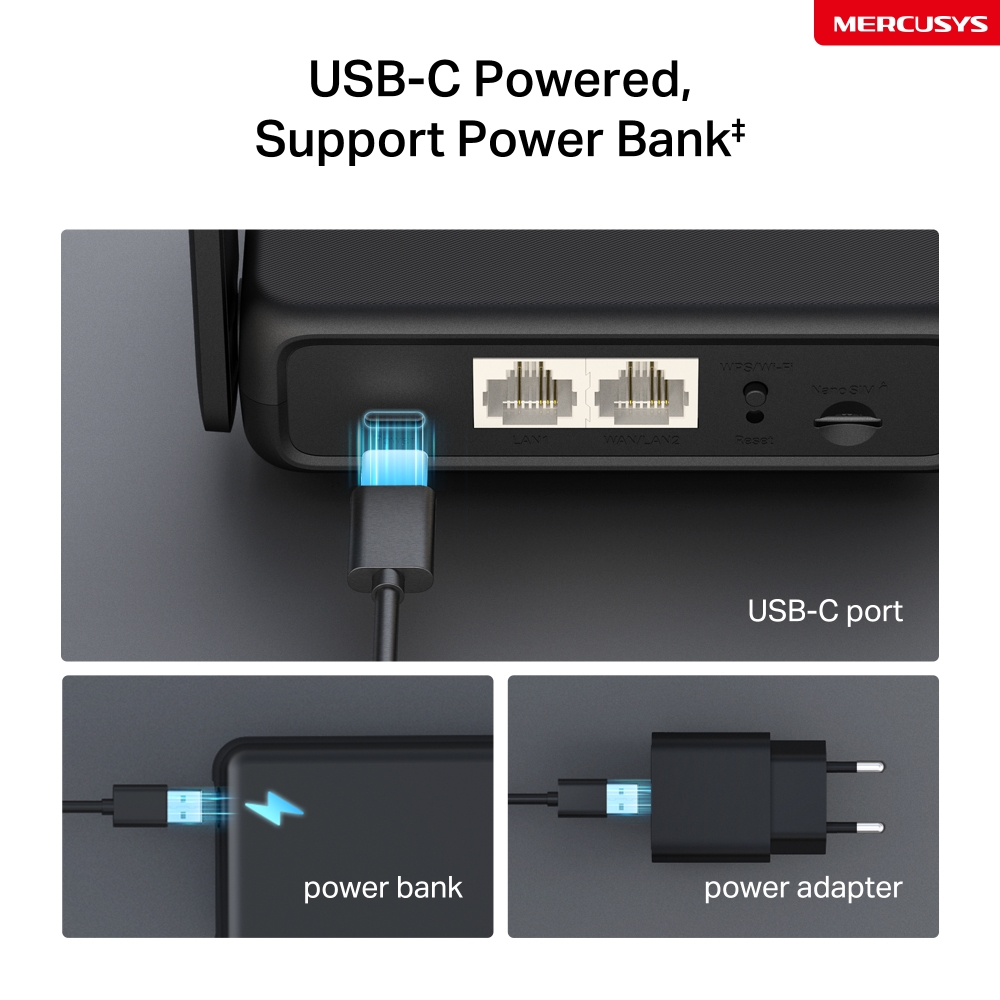
USB-C Powered, Support Power Bank‡
With its USB-C port, MB113-4G also supports power bank charging‡. Power it anywhere, even on the go without a power socket.
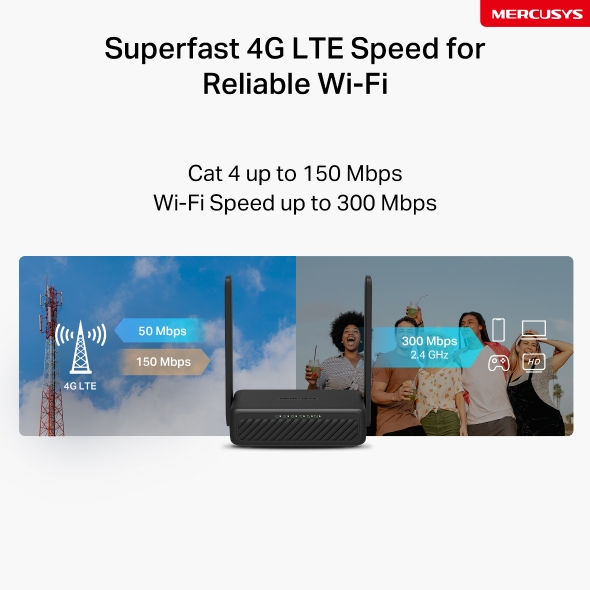
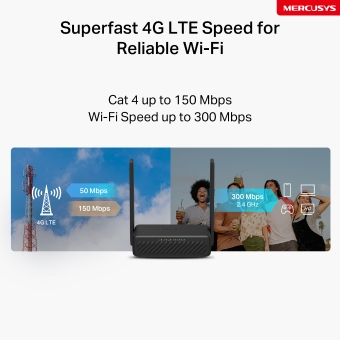
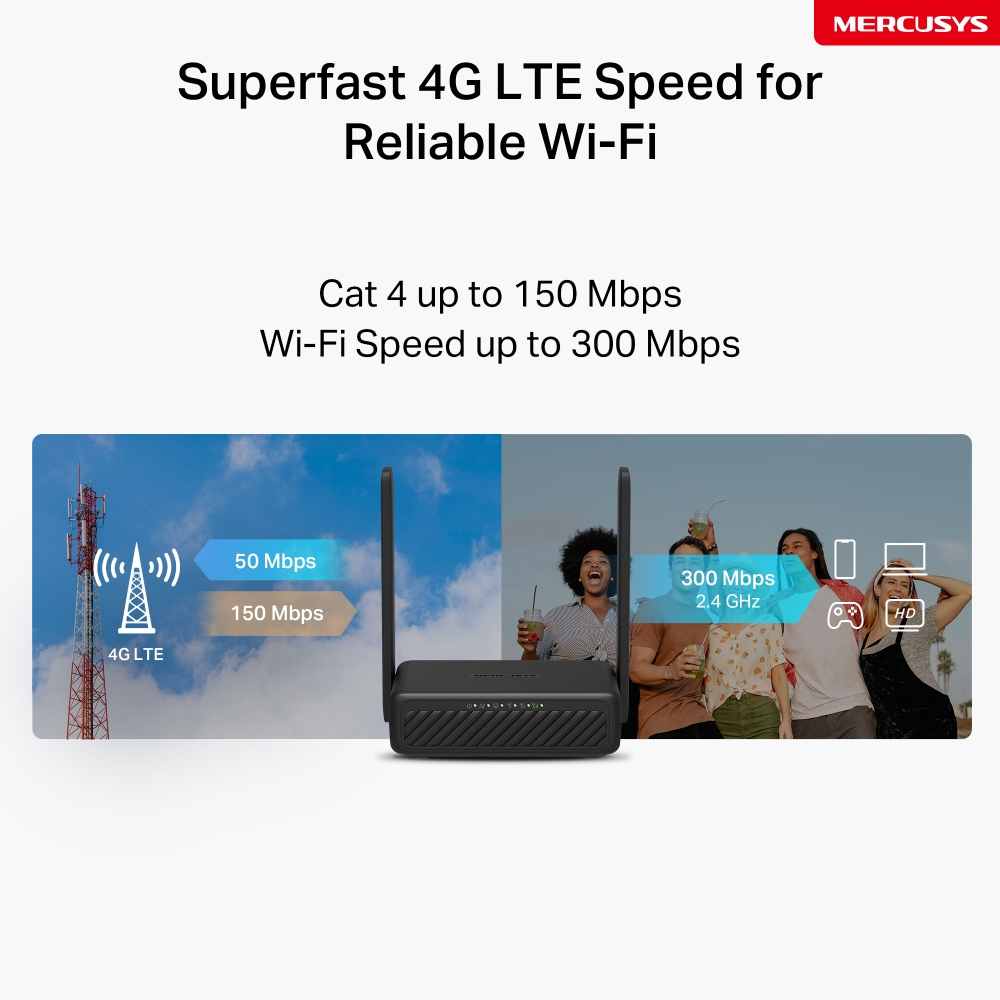
Superfast 4G LTE Speed for Reliable Wi-Fi
MB113-4G harnesses 4G LTE technology to deliver lightning-fast download speeds of up to 150 Mbps and up to 50 Mbps for uploads△. It also shares a WiFi network with a max speed of 300 Mbps on 2.4 GHz—perfect for gaming, streaming, and more☆.
*Note: Maximum wireless signal rates are the physical rates derived from IEEE Standard 802.11 specifications.
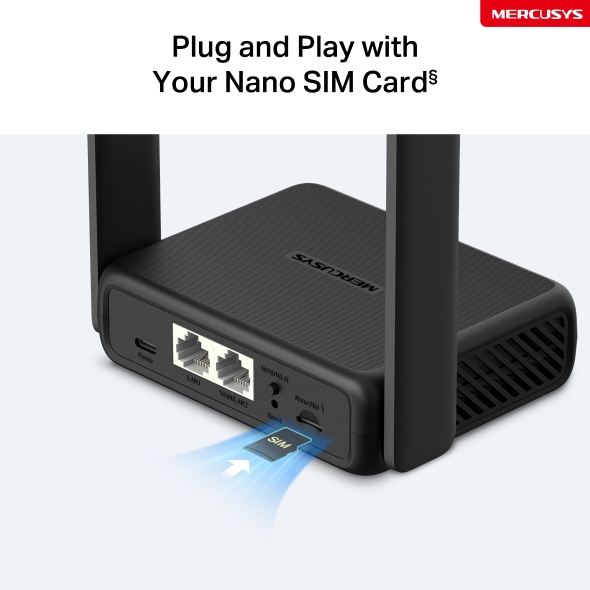
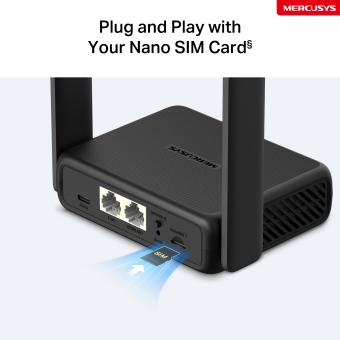
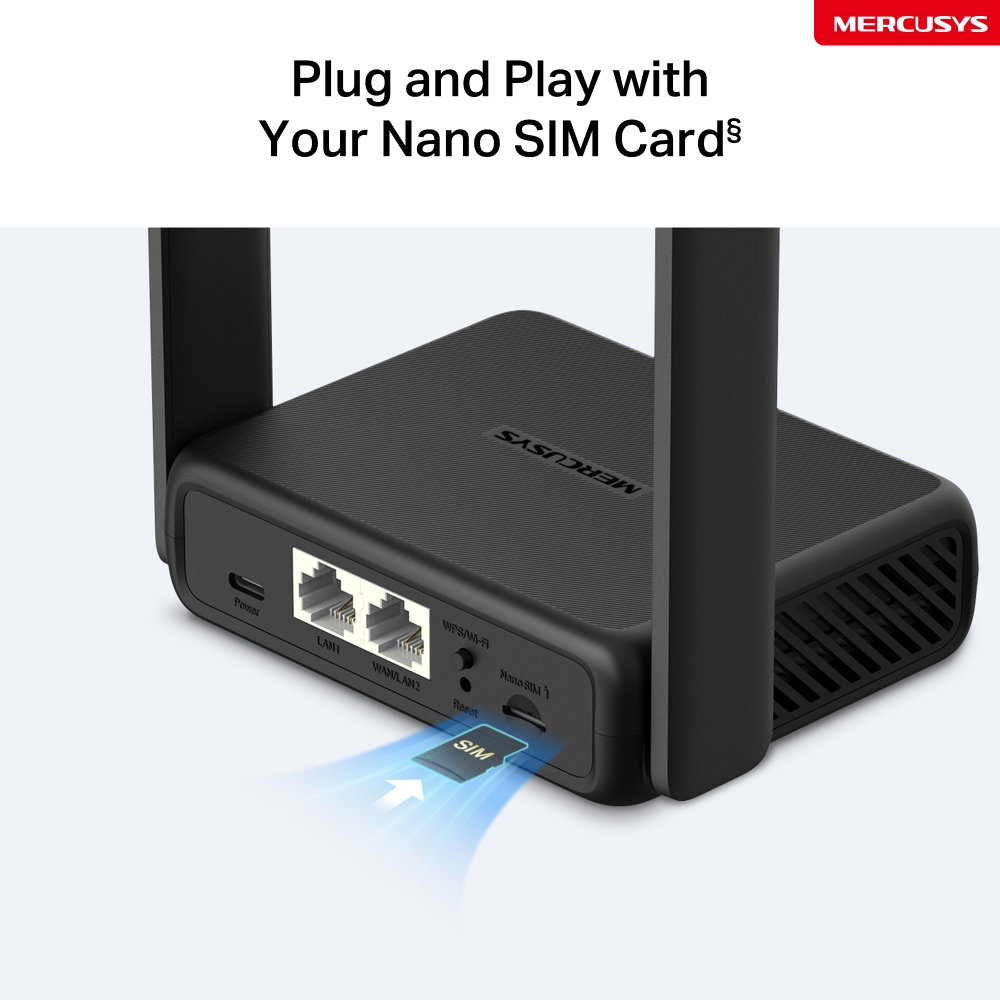
Plug and Play with Your Nano SIM Card§
Fully compatible with FDD-LTE and TDD-LTE for use with most service providers worldwide. Insert a nano SIM card and turn on the router to share your 4G LTE network with multiple WiFi devices§.
Notes: Make sure your SIM card is unlocked. If not, you can:
a. Set up the router via the MERCUSYS app and follow the app instructions to unlock your SIM card.
b. Log in to the router's web management page and go to Advanced > Network > PIN Management to verify.
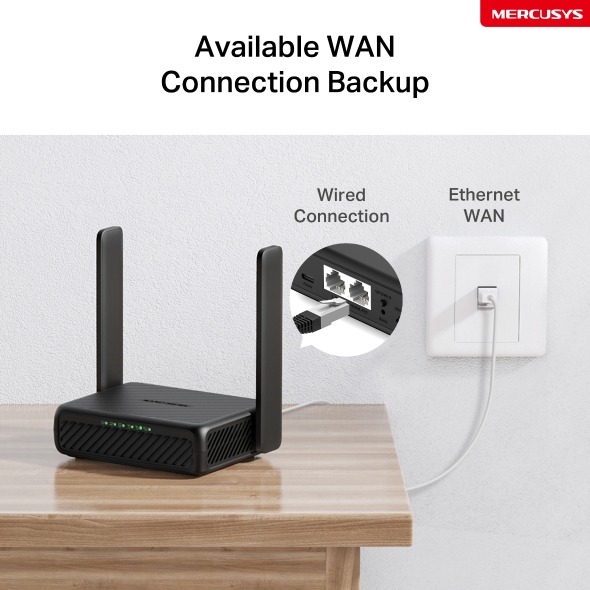
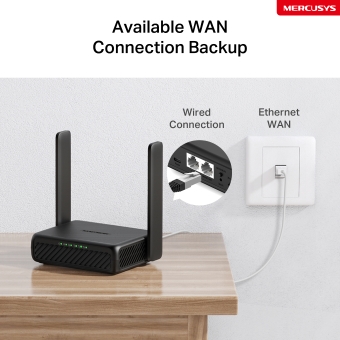
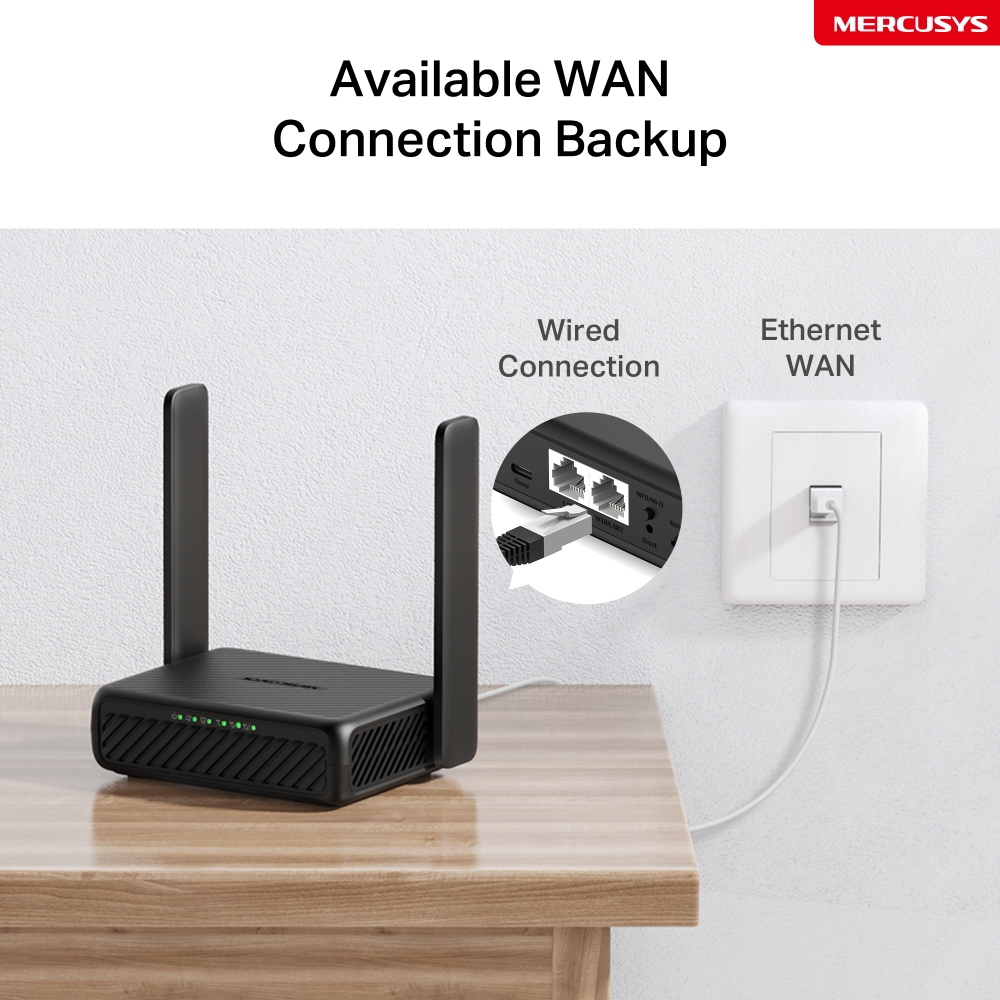
Available WAN Connection Backup
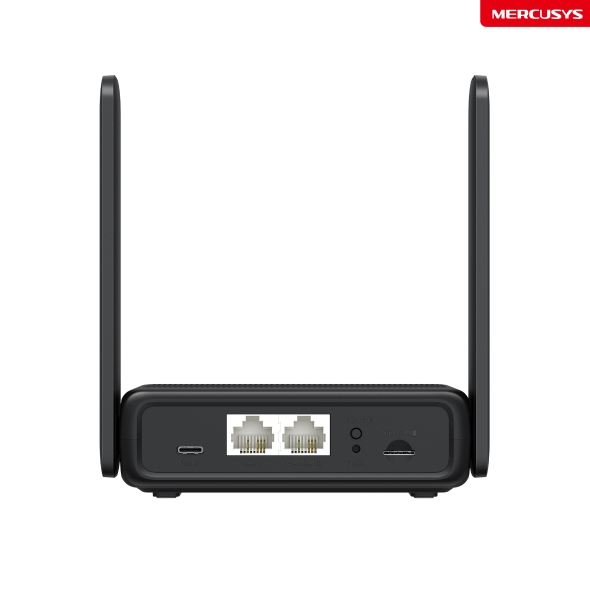
With a fully functional WAN/LAN port, MB113-4G can work as a router that is compatible with cable, fiber, and DSL modems, or provide internet for wired devices.
Note: When the router is set to Wireless Router mode, it can be used as the WAN port to connect the DSL/cable Modem or Ethernet outlet. To change to this mode, refer to Set Up the Router in Wireless Router Mode. (You can check the steps in the User Guide.)
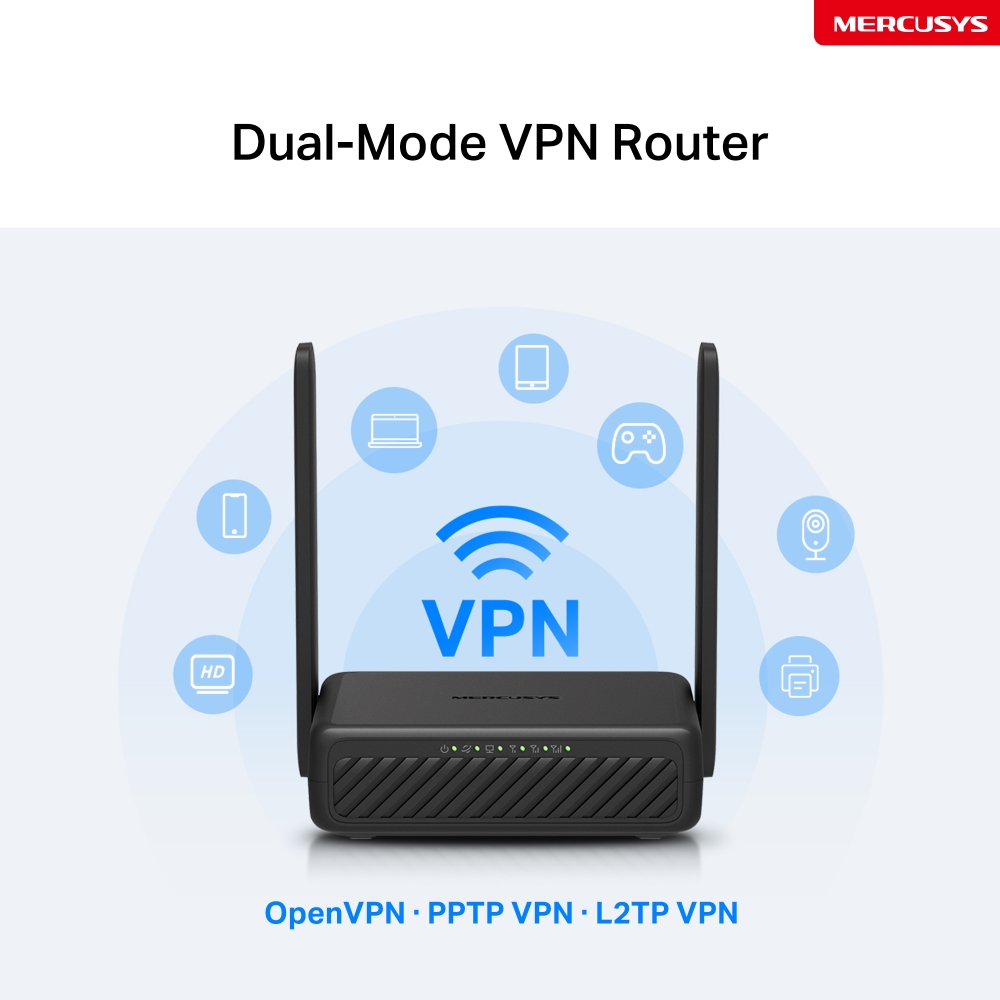
Dual-Mode VPN Router
One device, two modes. With Client Mode, your entire home network is protected: all connected devices, even those that can’t run VPN software themselves, benefit from encrypted privacy; Server Mode builds a secure tunnel to access home NAS, cameras, and more from anywhere globally.
OpenVPN · PPTP VPN · L2TP VPN
Share the WiFi with Friends
A remarkable number of wireless gadgets are compatible with this 4G router without any issues. Up to 32 simultaneous connections for tablets, laptops, mobile phones, and other devices.
Easy Setup and Management via the MERCUSYS App
Set up and manage your Wi-Fi through the MERCUSYS app from your smartphone (Android, iOS).


Comprehensive Management
-

Parental Controls
Set effective policies to ensure your children enjoy safe and responsible internet access.
-

Guest Network
Provides a separate network for guests to ensure your security and privacy.
-

Data Settings
Set a maximum data limit to prevent overspending and monitor your monthly usage with the Monthly Data Statistics feature.
-

Messaging
Set up the Message Center to access SMS features and receive alerts when nearing your data limit.
‡This product supports 5V input only. Use of 9V or other voltages may cause product failure or safety risks. Always use a compatible power source. △Maximum 4G download speeds depend on external factors such as the local 4G network coverage, data plan, real-time network capacity, client limitations, and environmental factors. ☆Maximum wireless signal rates are the physical rates derived from IEEE Standard 802.11 specifications. Actual wireless data throughput and wireless coverage, and quantity of connected devices are not guaranteed and will vary as a result of network conditions, client limitations, and environmental factors, including building materials, obstacles, volume and density of traffic, and client location. §SIM card sold separately. This device requires an activated SIM card without a PIN lock. If the SIM is locked, please consult the Quick Installation Guide for unlocking instructions.
MERCUSYS
The MERCUSYS app provides the easiest way for you to set up in minutes and manage your WiFi at home or away through your iOS or Android devices.
MERCUSYS Helps You Set Up in A Few Steps
Without any technical know-how or reading complicated instructions, simply follow the in-app instructions. Set up your mesh network in minutes.
-
 Halo Power Cable Ethernet Cable
Step 1
Find what you’ll need in the box
-

Step 2
Plug in your devices
-

Step 3
Follow the on-screen directions with the MERCUSYS app
Manage Your WiFi in Real Time
With the MERCUSYS app, experience live network management. See who’s connecting to your network and manage it at any time with your iOS or Android devices.
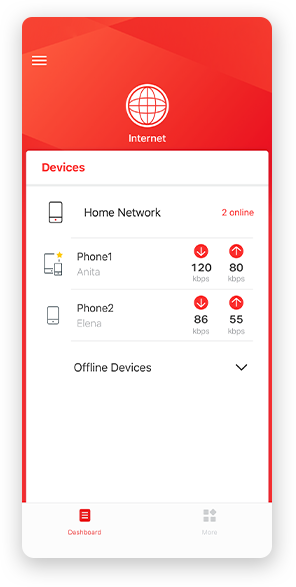
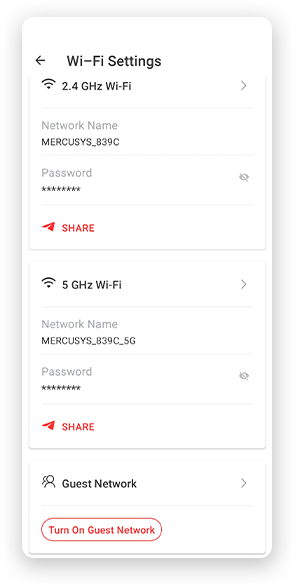
Notice: The configuration page of different models may be different, please refer to the actual one.
Powerful Parental Controls
Easily manage your kids’ online time and content to create a safe and healthy online environment.
-
Create User Profiles
Create a profile for each family member you would like to manage. Assign devices to the profile to set access controls and time limits for them.
-
Online Time Limits
Set daily limits on how long your kids spend online and prevent them from accessing the internet on their devices for a long time to build a healthy network habit.
-
Block Inappropriate Websites
Control which sites your kids visit by setting a block list.
-
Pause Internet Connection
Suspend family members’ internet connections to take a break from the virtual world to enjoy some family time.
Manage and Secure Your Home Network
The MERCUSYS app helps you manage your WiFi at home or away through your iOS or Android devices.

Check the Status of Connected Devices
Intuitively view the working status of your Halo network and see what is connected. Prioritize or block devices as needed.

Quality of Services
Prioritizes devices you select to perform better.

New Device Access Alert
The MERCUSYS app proactively sends out an alert to inform you when an unfamiliar device is connected. Tap to block the device if it is a security risk.

Set Up a Guest Network
Provides a separate network for guests to ensure your security and privacy.
Everything in One App
Whether you’re looking to control a wide range of MERCUSYS routers, extenders, or Halo mesh systems, find it all on the app.
See what’s compatibleCompatible Products
Note: The device's firmware requires the latest version. Click here to learn how to upgrade your firmware.
Note: Both listed and higher hardware versions of these models are compatible with the MERCUSYS app.
Supporting Multiple Languages
MERCUSYS app supports up to 26 languages, enabling easy network management for users all over the world.
-
English
-
Nederlands
-
Français
-
Deutsch
-
Italiano
-
日本語
-
한국어
-
Português
-
Español
-
繁體中文
-
Русский язык
-
Português Brasil
-
Español
(Latinoamérica) -
Български
-
Українська мова
-
Polski
-
Română
-
Slovenčina
-
ไทย
-
Türkçe
-
Čeština
-
Tiếng Việt
-
Eλληνικά
-
Bahasa Melayu
-
Magyar
-
עברית
- Wireless
- Network Type
EU:
FDD-LTE: B1/B3/B5/B7/B8/B20/B28 (2100/1800/850/2600/900/800/700 MHz)
TDD-LTE: B38/B40 (2600/2300 MHz)
HSPA+/UMTS: B1/B5/B8 (2100/850/900 MHz)- LTE Standard
Cat 4
150/50 Mbps DL/UL- Wi-Fi Class
N300
- Wi-Fi (2.4 GHz)
300 Mbps
- Wireless Standards
IEEE 802.11b/g/n
- Frequency
2.4 GHz
- Max Channel Width
40 MHz
- Reception Sensitivity
11b 11 Mbps: -87.5 dBm
11g 54 Mbps: -74 dBm
11n HT20 MCS7: -71 dBm
11n HT40 MCS7: -69 dBm- MAX Capacity
32
- Recommended Clients Limit
16
- Max Wi-Fi Modulation
MCS7
- Wireless Security
WPA-PSK / WPA2-PSK
- Wireless Functions
Smart connect
WPS
Wireless Schedule
Wireless Clients Statistics
- Hardware
- Dimensions
108 × 86.8 × 34 mm
(4.3 × 3.4 × 1.3 in)- Interfaces
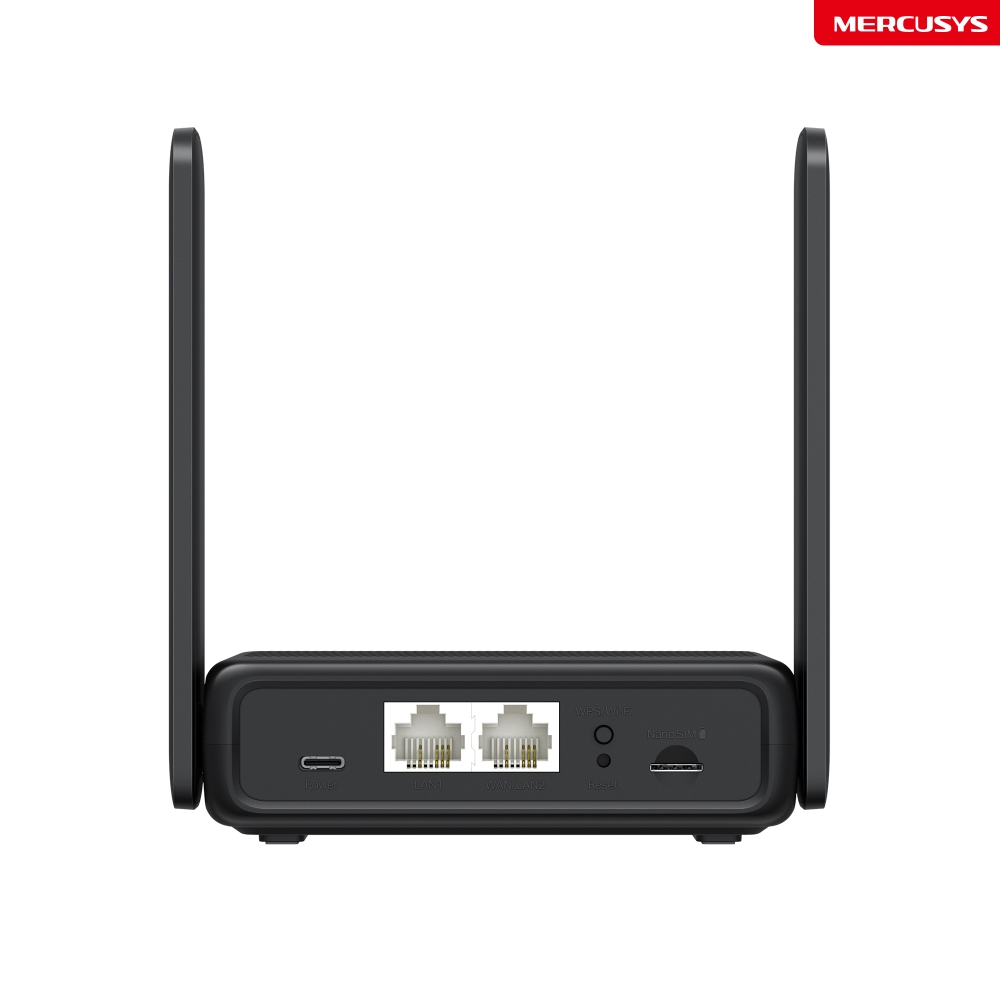
1× 100 Mbps LAN/WAN Port
1× 100 Mbps LAN Port
1× Nano SIM Card Slot- Antenna
2 External Non-detachable 4G LTE Antennas
2 Internal Wi-Fi Antennas- Button
1×WPS/Wi-Fi Button
1×Reset Button- Retail Package Weight
0.35 kg
- Installation
Desktop
- LED
1× Power
1× Internet
1× LAN
3× Signal- Retail Package Dimension
192 × 148 × 58
- Units per Carton
32
- Carton Dimension
480 × 400 × 320
- Power
USB-C: 5V/1.5A
- Software
- Operation Mode
3G/4G Router
Wireless Router- Cellular Mode
4G Preferred
4G Only
3G Only- Cellular APN
Data Roaming
Network Search
Profile Create
APN Settings
ISP File Upgrade
PIN Management- WAN Mode
Dynamic IP
Static IP
PPPoE
PPTP
L2TP- NAT Forwarding
ALG
Virtual Server
Port Triggering
UPnP
DMZ- Protocols
IPv4, IPv6
- Data Settings
Data Statistics
Data Limit- Guest Network
2.4 GHz Guest Network
- Parental Controls
Time Control
Website Filtering- DHCP
Server
DHCP Client List
Address Reservation- DDNS
DynDNS
NO-IP- VPN Server
OpenVPN
PPTP VPN
L2TP VPN- SMS
Inbox
New Message
Outbox
Drafts- Security
IPv4 SPI Firewall
Access Control
Service Filtering
IP & MAC Binding
IPv6 Firewall- ISP Feature
TR-069
- System
Time Settings
LED Control
Diagnostics
Firmware Upgrade
Backup&Restore
Reboot
Administration
System Log
CWMP Settings- LED Management
LED Control
Night Mode- Device Management
MERCUSYS APP
Web GUI- Cloud
Firmware Upgrade over the Cloud
Remote Management- Language
English
Spanish
Italian
Polish
Russian
- Others
- Certifications
CE
- Network Services Enabled by Default
Web Server
Manage and configure device through web (HTTP/HTTPS)
• Port: 80/443 Protocol: TCPDHCP Server
IP address assignment (DHCP)
• Port: 67 Protocol: UDPCWMP
CWMP
• Port: 7547 Protocol: TCPApp management
Manage and configure device through app
• Port: 20001 Protocol: TCP
• Port: 20002 Protocol: UDP- Package Contents
300 Mbps Wireless 4G LTE Router (MB113-4G)
Power Adapter
RJ45 Ethernet Cable
Quick Installation Guide- Environment
Operating Temperature: 0 °C~40 °C (32 °F~104 °F)
Storage Temperature: -40 °C~60 °C (-40 °F~140 °F)
Operating Humidity: 10%~90% Non-Condensing
Storage Humidity: 5%~90% Non-Condensing