MR80X [V1, V2, V2.20, V3, V6] | AX3000 Dual-Band Wi-Fi 6 Router
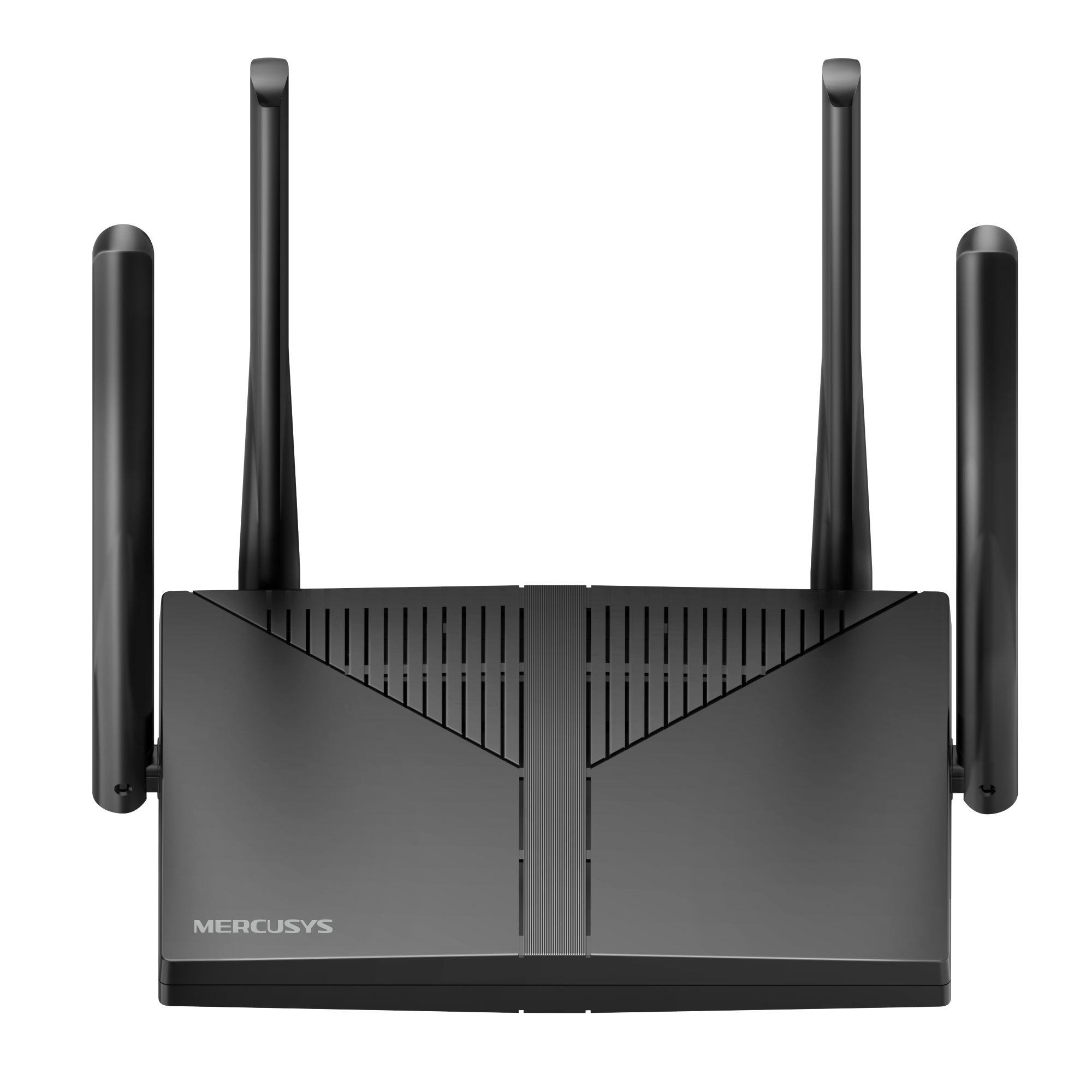
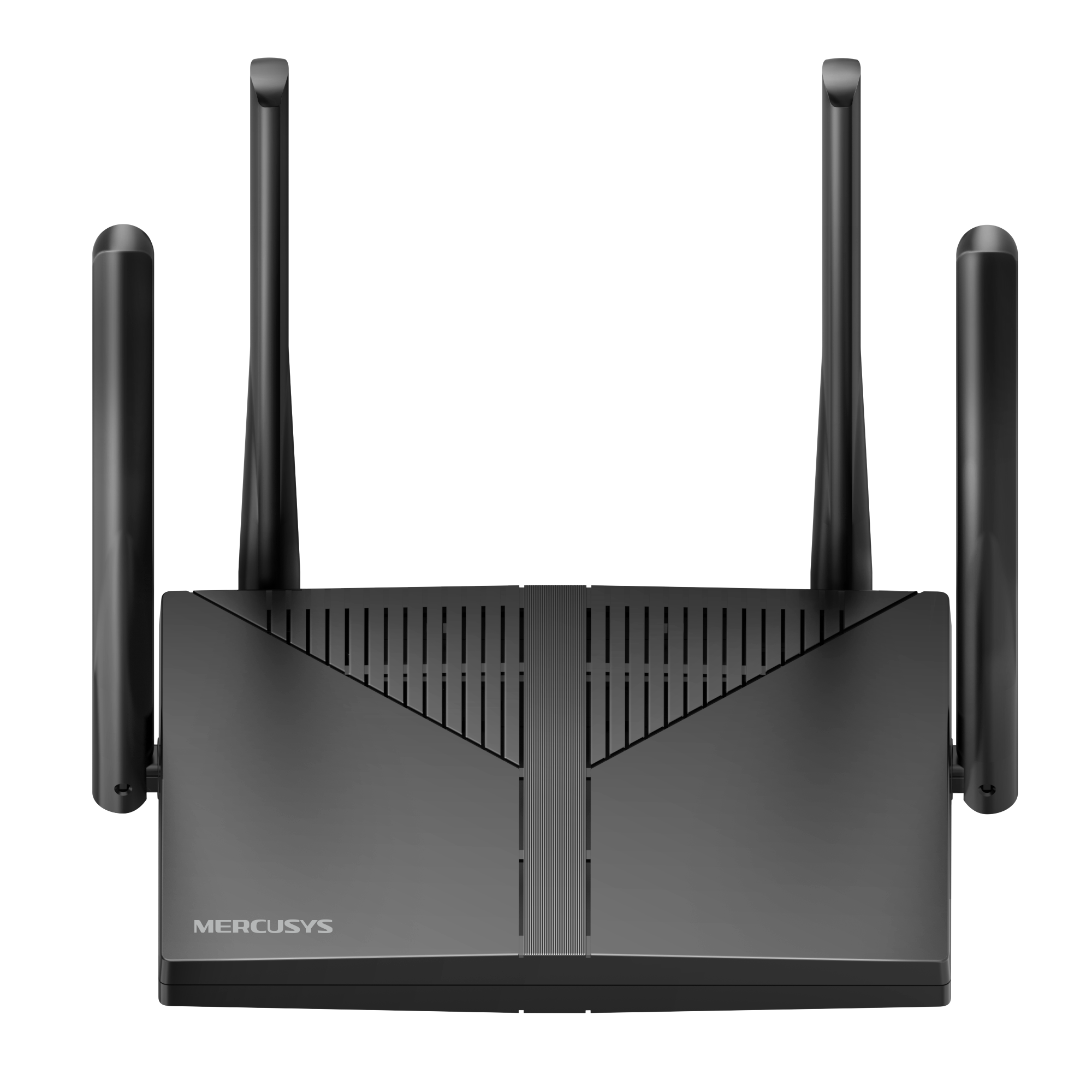
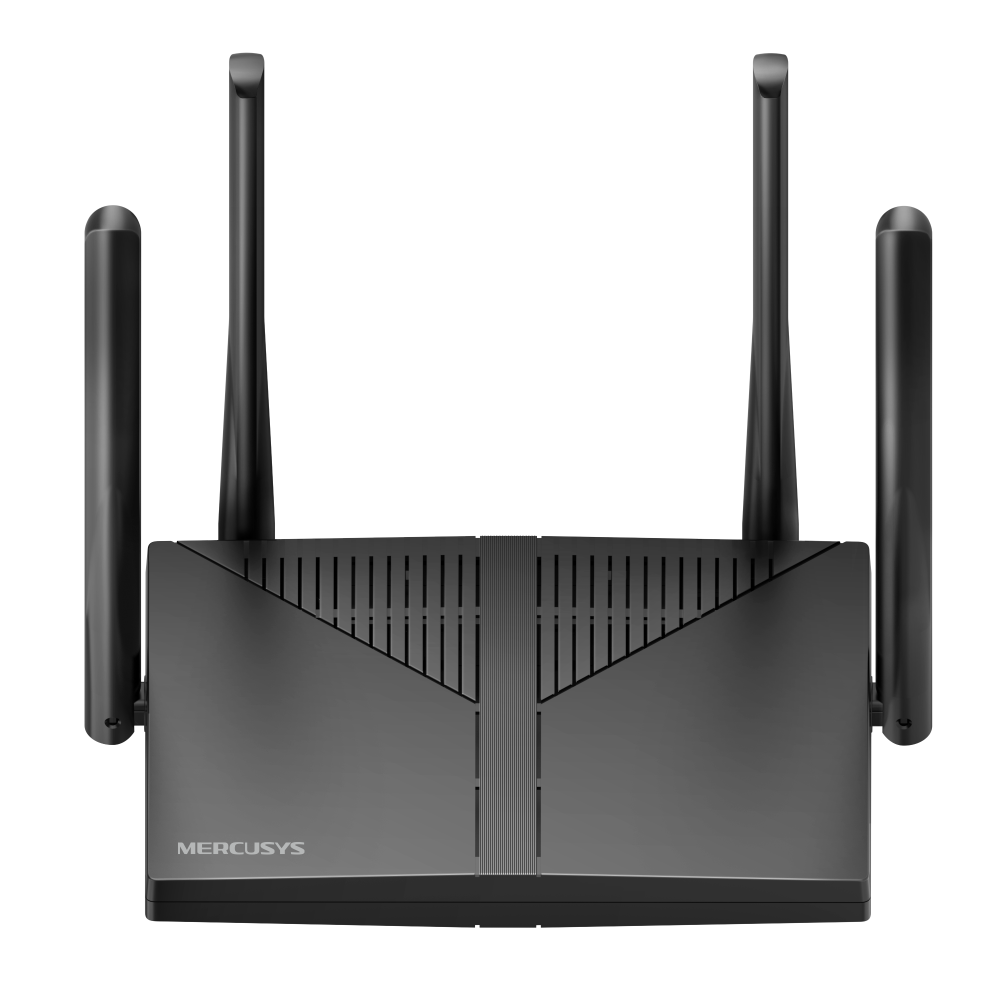
AX3000 Dual-Band Wi-Fi 6 Router
•Wi-Fi 6 Technology: Wi-Fi 6 technology achieves up to 3x faster speeds, higher capacity and lower latency compared to the previous generation of Wi-Fi 5.†
•Next-Gen 3 Gbps Speeds: Reaches incredible speeds up to 3 Gbps (2402 Mbps on 5 GHz band and 574 Mbps on 2.4 GHz band) for faster streaming and gaming like you have never experienced before. ‡
-
watch video: Setup Video for MERCUSYS Dual Band Wi Fi 6 Router
Setup Video for MERCUSYS Dual Band Wi Fi 6 Router
-
watch video: How to Set Up EasyMesh with MERCUSYS Router (Taking MR47BE V2 as an example)
How to Set Up EasyMesh with MERCUSYS Router (Taking MR47BE V2 as an example)
†Use of 802.11ax (Wi-Fi 6), and features including OFDMA, 160 MHz Channel, MU-MIMO, 1024-QAM, BSS Coloring requires clients to also support the corresponding features. The 160 MHz bandwidth may be unavailable in the 5 GHz band in some regions/countries due to regulatory restrictions. ‡Maximum wireless signal rates are the physical rates derived from IEEE Standard 802.11 specifications. Up to 150 device connections is based on laboratory test data, which analyzed the connections of different devices on the 5 GHz, and 2.4 GHz bands simultaneously. These devices simulated a typical home scenario by running simultaneous applications in the same room that included 4K video, 1080p video, 720p video, file downloading, web browsing, IP cameras, and other loT devices. Actual wireless data throughput, wireless coverage, and connected devices are not guaranteed and will vary as a result of internet service provider factors, network conditions, client limitations, and environmental factors, including building materials, obstacles, volume and density of traffic, and client location. §1 Gbps internet speeds require compatible service plans and equipment. *EasyMesh-compatible products can network with other devices that use EasyMesh. Failed connections may be due to firmware conflicts of different vendors. The EasyMesh-compatible function is still being developed on some models and will be supported in subsequent software updates. This product is compatible with standardized EasyMesh technology but has not obtained the Wi-Fi EasyMeshTM certification.
MERCUSYS
The MERCUSYS app provides the easiest way for you to set up in minutes and manage your WiFi at home or away through your iOS or Android devices.


MERCUSYS Helps You Set Up in A Few Steps
Without any technical know-how or reading complicated instructions, simply follow the in-app instructions. Set up your mesh network in minutes.
-
 Halo Power Cable Ethernet Cable
Step 1
Find what you’ll need in the box
-

Step 2
Plug in your devices
-

Step 3
Follow the on-screen directions with the MERCUSYS app
Manage Your WiFi in Real Time
With the MERCUSYS app, experience live network management. See who’s connecting to your network and manage it at any time with your iOS or Android devices.
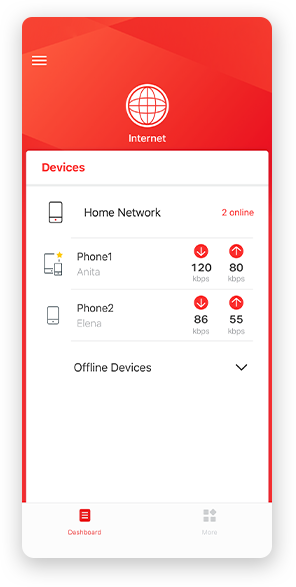
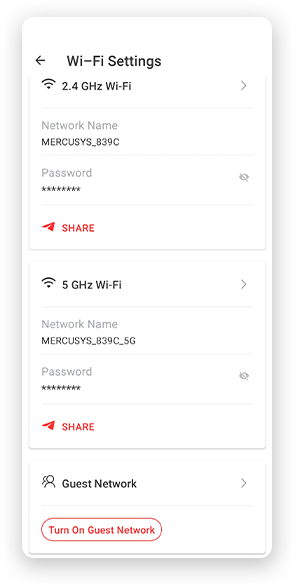
Notice: The configuration page of different models may be different, please refer to the actual one.
Powerful Parental Controls
Easily manage your kids’ online time and content to create a safe and healthy online environment.
-
Create User Profiles
Create a profile for each family member you would like to manage. Assign devices to the profile to set access controls and time limits for them.
-
Online Time Limits
Set daily limits on how long your kids spend online and prevent them from accessing the internet on their devices for a long time to build a healthy network habit.
-
Block Inappropriate Websites
Control which sites your kids visit by setting a block list.
-
Pause Internet Connection
Suspend family members’ internet connections to take a break from the virtual world to enjoy some family time.
Manage and Secure Your Home Network
The MERCUSYS app helps you manage your WiFi at home or away through your iOS or Android devices.

Check the Status of Connected Devices
Intuitively view the working status of your Halo network and see what is connected. Prioritize or block devices as needed.

Quality of Services
Prioritizes devices you select to perform better.

New Device Access Alert
The MERCUSYS app proactively sends out an alert to inform you when an unfamiliar device is connected. Tap to block the device if it is a security risk.

Set Up a Guest Network
Provides a separate network for guests to ensure your security and privacy.
Everything in One App
Whether you’re looking to control a wide range of MERCUSYS routers, extenders, or Halo mesh systems, find it all on the app.
See what’s compatibleCompatible Products
Note: The device's firmware requires the latest version. Click here to learn how to upgrade your firmware.
Note: Both listed and higher hardware versions of these models are compatible with the MERCUSYS app.
Supporting Multiple Languages
MERCUSYS app supports up to 26 languages, enabling easy network management for users all over the world.
-
English
-
Nederlands
-
Français
-
Deutsch
-
Italiano
-
日本語
-
한국어
-
Português
-
Español
-
繁體中文
-
Русский язык
-
Português Brasil
-
Español
(Latinoamérica) -
Български
-
Українська мова
-
Polski
-
Română
-
Slovenčina
-
ไทย
-
Türkçe
-
Čeština
-
Tiếng Việt
-
Eλληνικά
-
Bahasa Melayu
-
Magyar
-
עברית
-
Wireless

| Wireless Standards | Compatible with 802.11ax/ac/a/b/g/n Wi-Fi standards |
|---|---|
| WiFi Speeds | 2402 Mbps (5 GHz) + 574 Mbps (2.4 GHz) |
| Reception Sensitivity | 2GHz: 11g 6Mbps: -96dBm 11g 54Mbps: -78dBm 11n HT40 MCS7:-74dBm 11ac VHT40 MCS9:-70dBm 11ax HE40 MCS11:-63dBm
5GHz: 11a 6Mbps: -95.5dBm 11a 54Mbps: -78dBm 11n HT40 MCS7:-73.5dBm 11ac VHT80 MCS9:-65.5dBm 11ax HE80 MCS11:-60dBm |
| Transmission Power | 2.4 GHz < 20dBm (EIRP) |
| Wireless Security | WPA-PSK/WPA2-PSK/WPA3-SAE |
| Wireless Functions | Enable/Disable Wireless Radio, WMM |
-
Hardware
| Dimensions | 166.3 × 103.8× 34.3 mm |
|---|---|
| Interfaces | 1× Gigabit WAN Port + 4× Gigabit LAN Ports |
| Button | Reset Button, WPS Button |
| Antenna Type | 4× 5 dBi Fixed Omni-Directional Antennas |
-
Software
| WAN Type | Dynamic IP/Static IP/PPPoE/L2TP/PPTP |
|---|---|
| Management | Access Control |
| NAT Forwarding | Port Forwarding, Port Triggering, UPnP, DMZ |
| Firewall Security | SPI Firewall, IP and MAC Address Binding |
| Guest Network | 2.4 GHz Guest Network, 5 GHz Guest Network |
| DHCP | Server, DHCP Client List |
| VPN Server | OpenVPN/WireGuard/PPTP VPN Server and Client |
-
Others
| Network Services Enabled by Default | Web Server Manage and configure device through web (HTTP/HTTPS) • Port: 80/443; Protocol: TCP
DHCP Server IP address assignment (DHCP) • Port: 67; Protocol: UDP
DNS DNS • Port: 53; Protocol: TCP & UDP
App management Manage and configure device through app • Port: 20001; Protocol: TCP • Port: 20002; Protocol: UDP |
|---|---|
| Package Contents | • AX3000 Wi-Fi 6 Router MR80X |
| Environment | • Operating Temperature: 0°C~40°C (32°F~104°F) |